Use This Photoshop Technique to Boost Your Social Media Views

Use This Photoshop Technique to Boost Your Social Media Views

Creating a photo that captures attention on a busy social media feed is a common challenge. Even with a strong composition, an image can get lost in the noise if it lacks the polished, atmospheric quality that makes viewers stop and look closer. The frustration often lies in knowing what to do in post-production to elevate a good photo to a great one.

This video offers a practical look into the editing process behind a wildlife photo that successfully captured a wide audience. By walking through each Photoshop layer, it reveals how specific, subtle adjustments to light, color, and detail work together to build a compelling final image. You will learn the logic behind each edit, providing a framework you can apply to your own work.

Watch the Editing Breakdown

Any links or downloads mentioned by the creator are available only on YouTube

Building Atmosphere with Non-Destructive Layers

The core of this editing workflow is a non-destructive approach, where each adjustment is made on a separate layer. This method provides maximum flexibility, allowing you to fine-tune or disable any effect without altering the original image. A key technique demonstrated is the use of a 50% gray layer set to the Overlay blend mode. This special layer becomes invisible but serves as a perfect canvas for dodging and burning, enabling you to paint in light and shadow with precision.

By building edits in this layered fashion, you can direct the viewer's eye and enhance the mood of the photo. Shaping light with dodging and burning adds depth and dimension, making the subject pop. Similarly, adjusting colors on dedicated layers—like changing the eye color with a layer in Color blend mode—gives you isolated control. This process is less about drastic changes and more about the cumulative impact of small, intentional enhancements. Each layer adds another piece to the final story the image tells.

This workflow emphasizes that a powerful edit is often a combination of many subtle changes. Key benefits of this layered method include:

  • Flexibility: Adjust the intensity of any effect by lowering its layer opacity.
  • Control: Isolate different types of edits (light, color, texture) on their own layers.
  • Reversibility: Easily disable or delete a layer if you don't like the result.

Practical Tips for High-Impact Photo Editing

  • Enhance eyes non-destructively. Use the Dodge tool on a new 50% gray layer set to the Overlay blend mode to brighten the subject's eyes without permanently altering the pixels.
  • Shape light with Dodge and Burn. Create another 50% gray Overlay layer to manually paint in highlights and shadows, guiding the viewer's focus and adding dimensionality.
  • Use presets and filters with reduced opacity. Apply powerful effects like Lightroom presets, but lower the layer opacity to blend the effect subtly for a more natural look.
  • Isolate color changes. To change a specific color, such as for the eyes, paint the new color on a separate layer and set its blend mode to Color for a seamless and targeted adjustment.
  • Make final adjustments in Camera Raw. Use the Camera Raw filter on a Smart Object for final touches, like reducing texture for a softer look or calibrating colors to achieve a specific mood.

Explore these resources for more techniques and creative ideas in Photoshop.

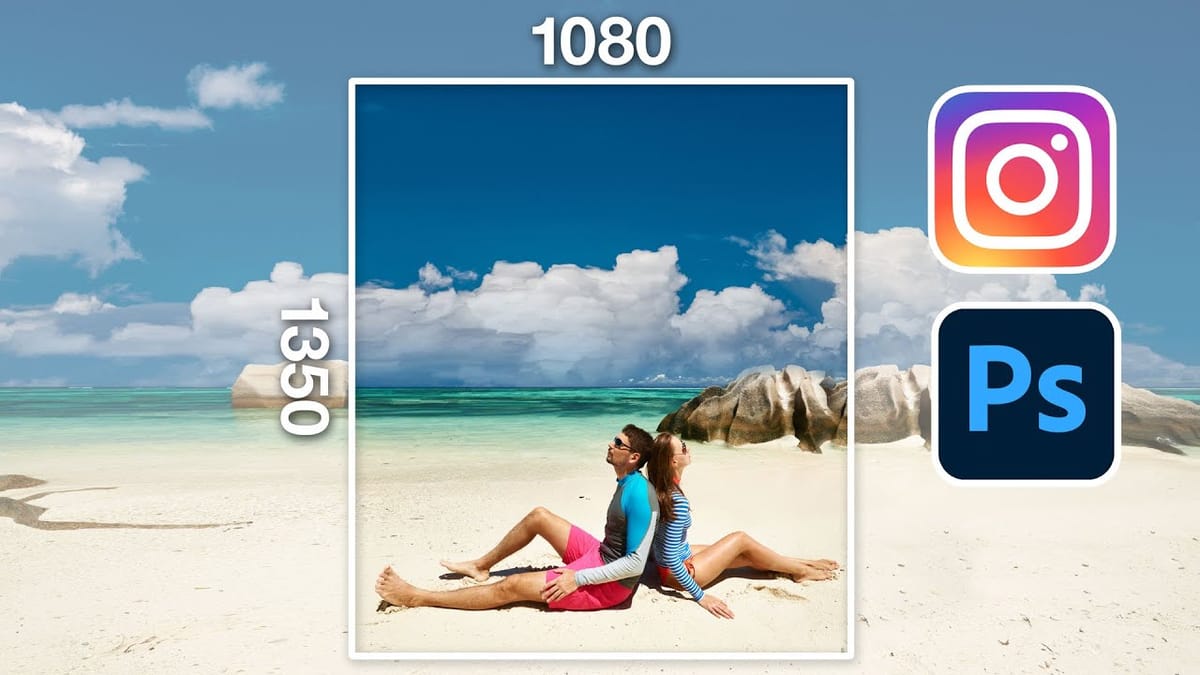
How to resize a picture for instagram in 2022
Learn the best size and settings to prepare a photo for posting on Instagram using Adobe Photoshop. Colin Smith shows you how to resize a photo for the correct size and even how to change the shape of a photo. Complete tutorial on prepping photos for instagram. More
5 tips to make your photos better in Photoshop
How to make your photos look better fast in Photoshop. 5 Tips to make all your photos look better in Photoshop. This Photoshop tutorial shows you 5 things you should do to make your photos look better than ever. More
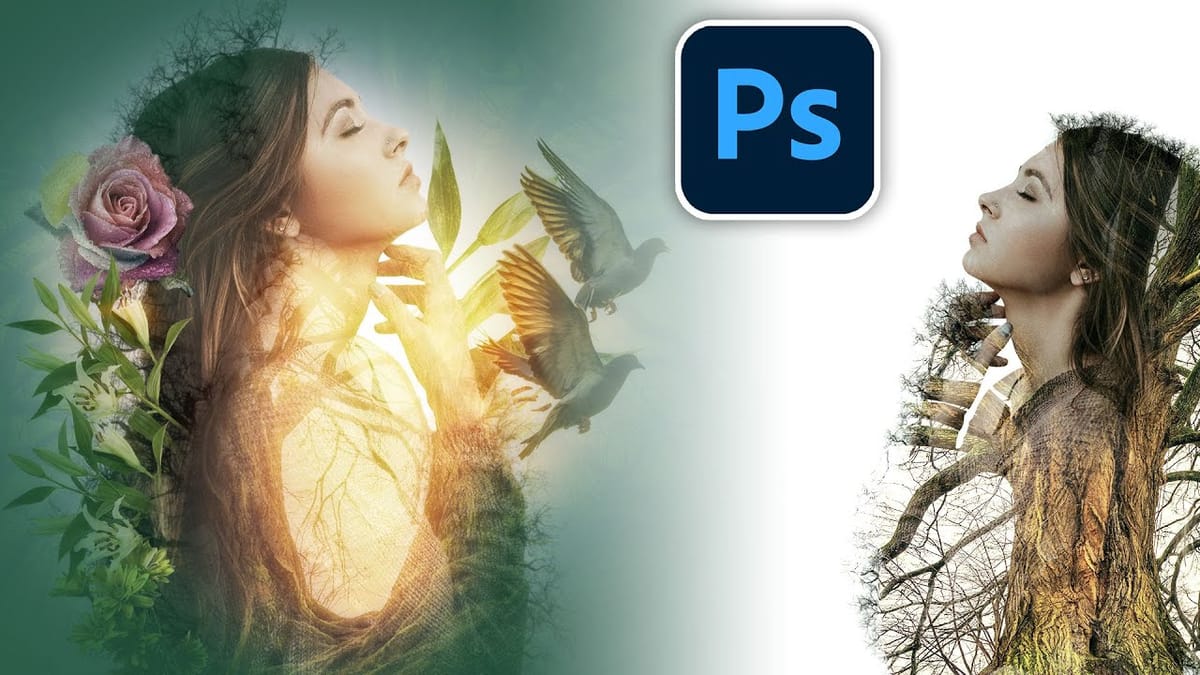
Make highly creative brushes from photos in Photoshop
How to make your own brushes from photos and use them to create Composites, digital art and collages. Colin Smith shows you how to make a double exposure effect in Photoshop. • Download 100 amazing custom fonts for FREE and also for commercial use here… • Download On1 PhotoRaw 2022 and try it for free […] More
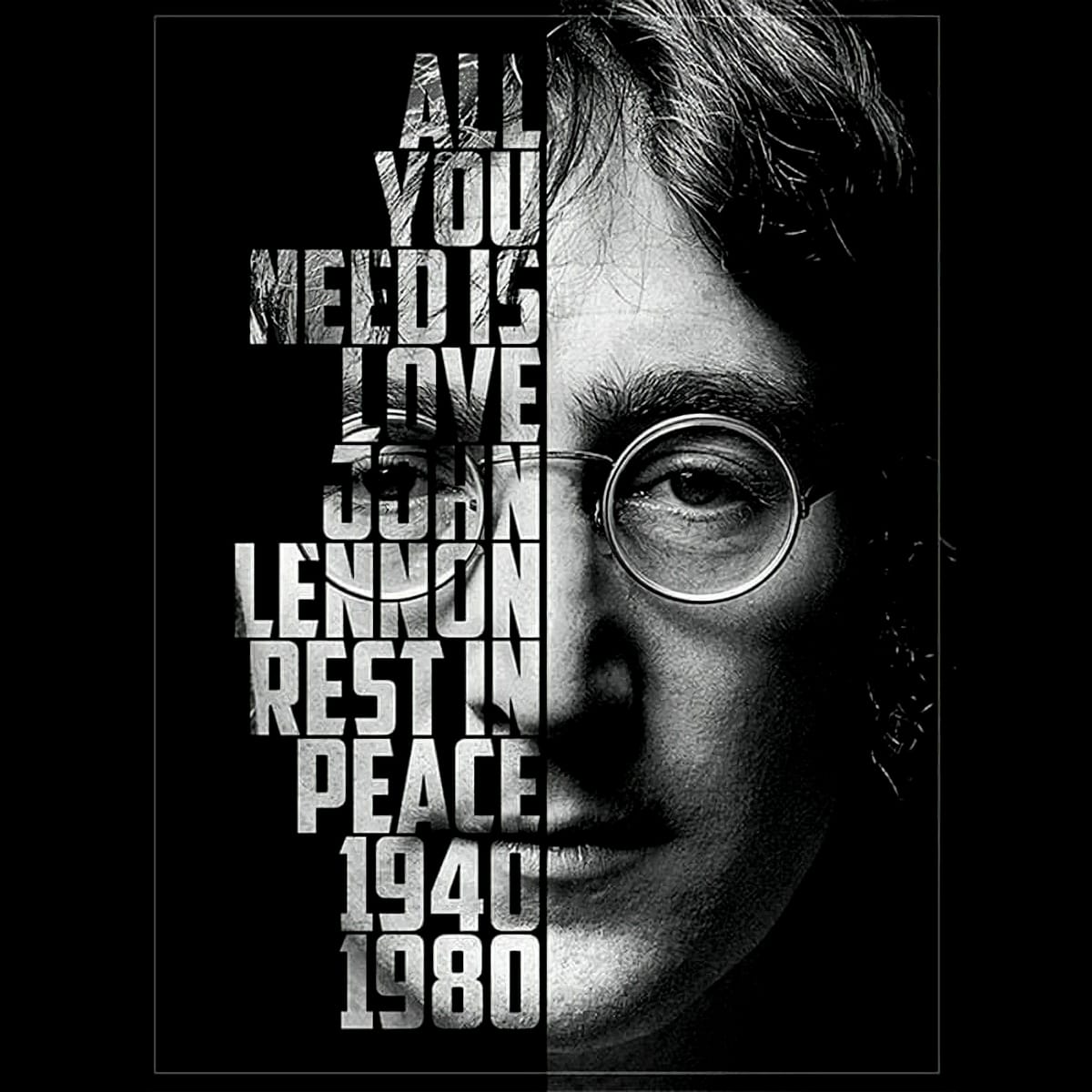
Create a cool text portrait in Photoshop – Photoshop Roadmap
Creating a text portrait in Photoshop is a sophisticated blend of photography and typography. In this tutorial by Marty from Blue Lightning TV, you’ll learn how to transform a standard photo into a powerful typographic portrait. Starting with an optimal photo choice, Marty guides you through desaturating the image, refining

Get tutorials & freebies delivered to you.

Subscribe to the Photoshop Roadmap newsletter, a weekly roundup of new tutorials, insights and quality downloads, trusted by 6500+ readers.

You might also like

How to Create Circle Cropped Photos with Transparent Backgrounds in Photoshop

Circular cropping transforms standard photographs into clean, professional profile images perfect for websites, social media, and presentations. The frame tool method creates non-destructive crops with transparent backgrounds that export seamlessly across different platforms. This streamlined workflow eliminates the need for complex selections or masks while maintaining full control over image...

How to Use Generative Upscale to Restore and Enhance Low-Resolution Images in Photoshop

Low-resolution images often limit your creative projects, especially when you need sharp prints or high-quality displays. Photoshop's Generative Upscale feature transforms small, pixelated photos into crisp, detailed images using AI-powered enhancement. This tool offers three distinct AI models, each designed for specific image types—from landscapes and portraits...

How to Use Harmonize to Automatically Match Lighting in Photoshop Composites

Creating seamless composites traditionally requires hours of manual color correction and lighting adjustments. The new Harmonize tool changes this by automatically analyzing your background and matching your subject's lighting, shadows, and color tones with a single click. This AI-powered feature eliminates the need for complex adjustment layers and...

How to Use Adobe Photoshop in ChatGPT for Photo Editing

Adobe Photoshop is now integrated directly into ChatGPT, allowing you to edit photos using simple text descriptions. This new feature lets you enhance images, apply creative effects, and make targeted adjustments without needing a Photoshop subscription. You can describe what you want to change and fine-tune adjustments using familiar Photoshop...

How to Fix Skin Tones in Photoshop - Complete Guide

Skin tones can make or break a portrait, yet color casts and uneven lighting often leave subjects looking unnatural or flat. Whether dealing with mixed lighting conditions, camera white balance issues, or post-processing mishaps, getting skin colors right requires a systematic approach that works consistently across different scenarios. This comprehensive...

You’ve successfully subscribed to Photoshop Roadmap
Welcome back! You’ve successfully signed in.
Great! You’ve successfully signed up.
Success! Your email is updated.
Your link has expired
Success! Check your email for magic link to sign-in.