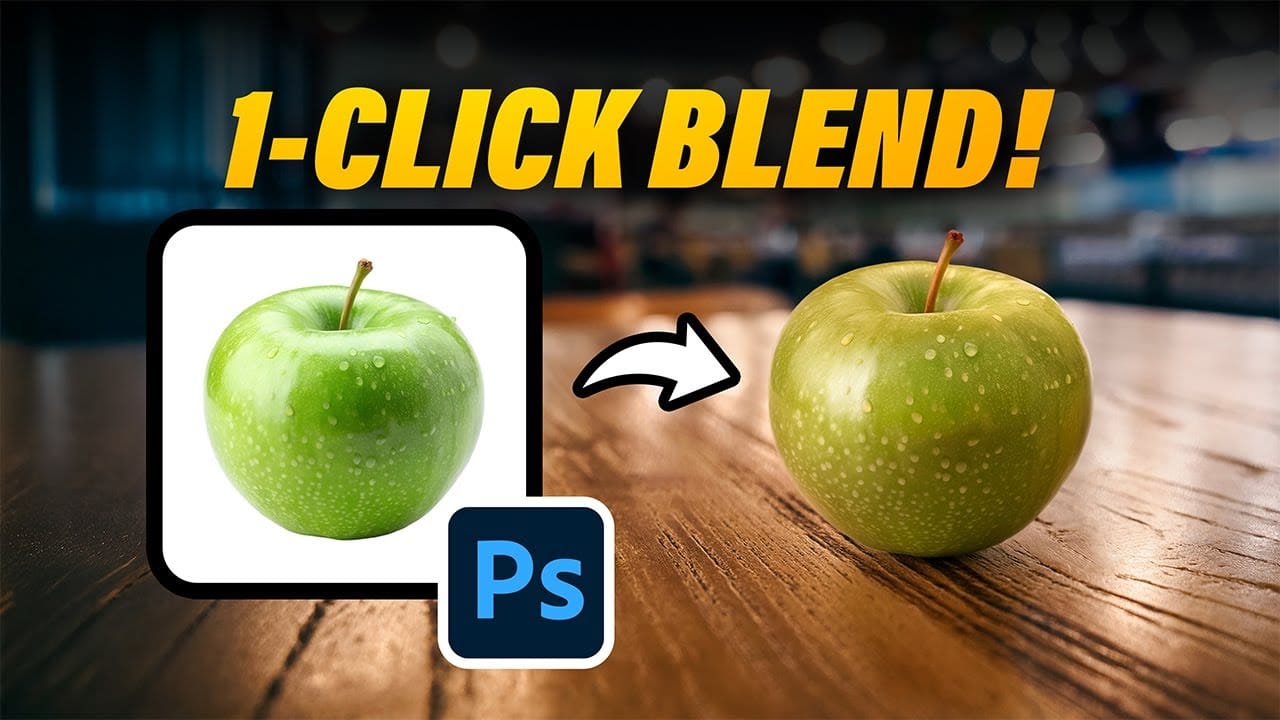
Blending modes transform how layers interact in Photoshop, letting you seamlessly combine images without complex masking. This technique reveals only light areas, dark areas, or specific colors from each layer.
Master these essential blending groups to create professional composites and artistic effects with just a few clicks.
Watch the Tutorial
Video by PHLEARN. Any links or downloads mentioned by the creator are available only on YouTube
Essential Blending Mode Tips
- Use Screen or Lighten modes to make dark backgrounds disappear while keeping bright elements visible
- Apply Multiply or Darken modes to hide light backgrounds and preserve dark subject matter
- Navigate blending modes quickly with keyboard shortcuts: press V for move tool, then Shift + Plus/Minus to cycle through options
- Adjust problematic areas using Levels (Ctrl/Cmd + L) to make backgrounds lighter or darker for better blending results
- Add artistic color effects with solid color fill layers set to Soft Light or Overlay blend modes
More Tutorials About Photoshop Blending Modes
Explore advanced blending techniques and creative applications for professional image editing.
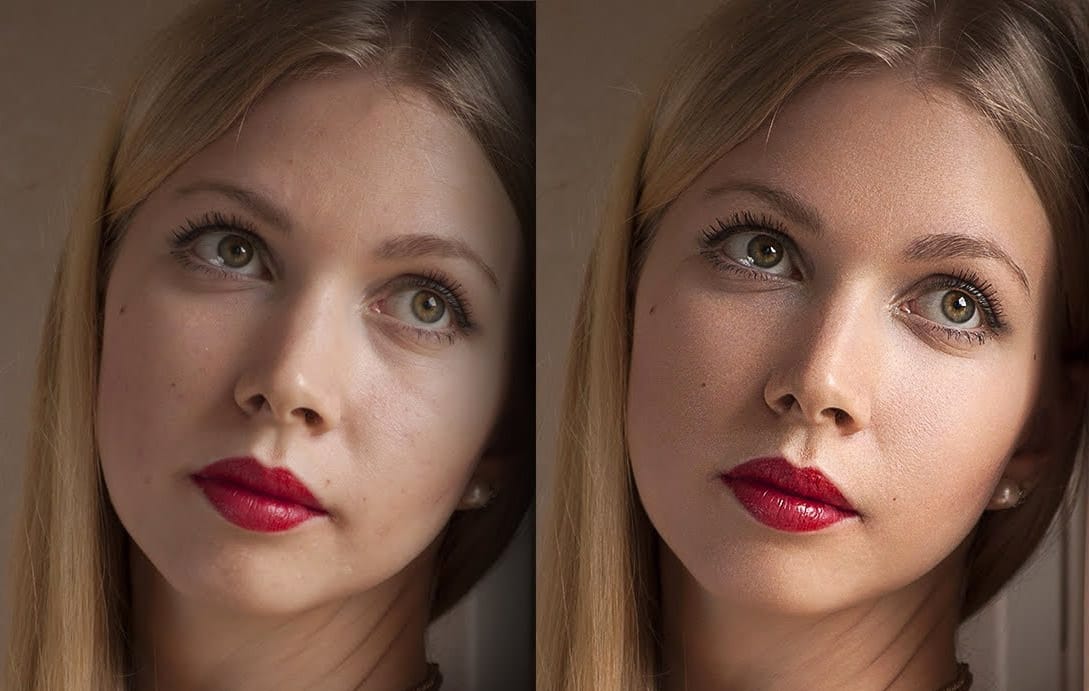
High-end skin retouching with just 2 layers in Photoshop
One of the simplest ways to perform high-end skin retouching in Photoshop! Whether you are creating magazine covers or working on a high-end project, achieve the best quality skin using just 2 layers! In this tutorial by PiXimperfect, we will learn a simple blend mode to do extensive dodging and burning to get the most realistic skin texture, maintaining the softness, and keeping the skin flawless.
This two-layer technique is just another way to do dodging and burning, but a little more easily
The Science of All 27 Blend Modes in Photoshop
Blend modes are a core feature in Photoshop, essential for manipulating how layers interact and visually combine. They unlock a vast range of creative possibilities, from subtle image enhancements to dramatic composite effects. Understanding each mode allows for precise control over your image adjustments and creative vision.
This comprehensive guide demystifies all 27 main blend modes, detailing their unique properties and practical applications. It serves as an invaluable reference, helping y

Creative Uses of Photoshop's Difference Blending Mode
The Difference blending mode often gets overlooked in Photoshop, dismissed as too unpredictable or harsh for creative work. Most designers know it as a utility tool for layer alignment, but this powerful mode can create striking effects when used thoughtfully.
From grungy texture overlays to vintage solarized looks, Difference mode offers unique creative possibilities that other blending modes simply can't achieve. The key lies in understanding how it interacts with different tonal values and u
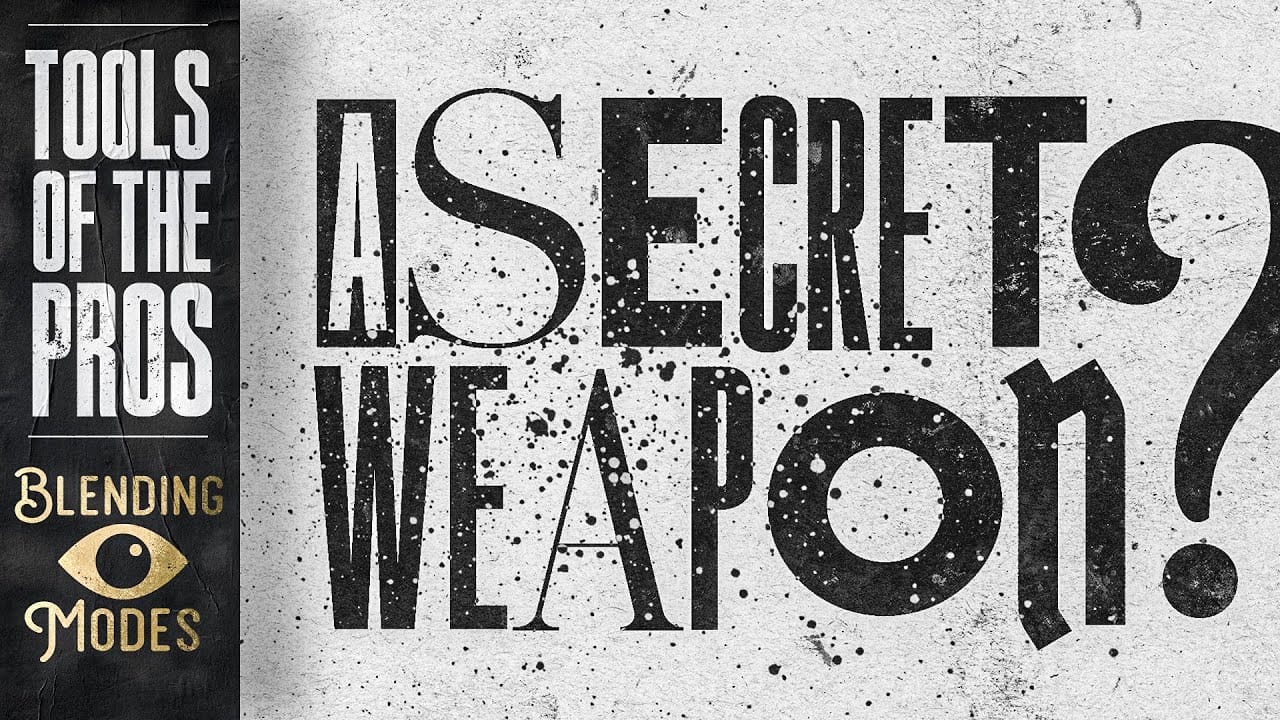
How to Use Photoshop's New Harmonize Feature to Blend Images Automatically
Photoshop's latest AI feature promises to solve one of compositing's biggest challenges: making cut-out objects look naturally integrated into new backgrounds. The new Harmonize tool automatically matches lighting, creates shadows, and adds reflections with a single click.
This breakthrough technology eliminates hours of manual work that traditionally required advanced knowledge of color theory, lighting principles, and complex adjustment layers. While still in beta, Harmonize represents a sign