Color grading can transform your images, but manually adjusting curves and levels for every photo takes time. Photoshop actions offer a faster approach by applying professional color treatments with a single click.
This workflow uses pre-built actions, tints, and LUTs to achieve various moods and styles instantly, letting you layer multiple effects to build the exact look you want.
Watch the Tutorial
Video by SandraD Imagery. Any links or downloads mentioned by the creator are available only on YouTube
Practical Tips for One-Click Color Grading
- Set your Actions panel to button mode for faster access to color grading tools
- Build color depth gradually by layering multiple subtle actions rather than relying on one strong effect
- Use mint solid colors on soft light blend mode to quickly brighten images instead of manual level adjustments
- Adjust opacity on action layers to fine-tune the intensity of color effects
- Combine actions with LUTs for more complex color treatments and atmospheric looks
More Tutorials About Color Grading in Photoshop
These tutorials cover different approaches to color correction and grading techniques.
How to Color Grade Without Oversaturating Skin Tones Using Camera Raw
Professional color grading often creates a dilemma: boosting vibrant colors while keeping skin tones natural. Traditional saturation adjustments can make portraits look overprocessed, turning skin an unflattering orange or magenta. This technique uses Camera Raw’s masking tools to selectively enhance background colors while protecting skin tones, creating vibrant images that
 WeJustClickMe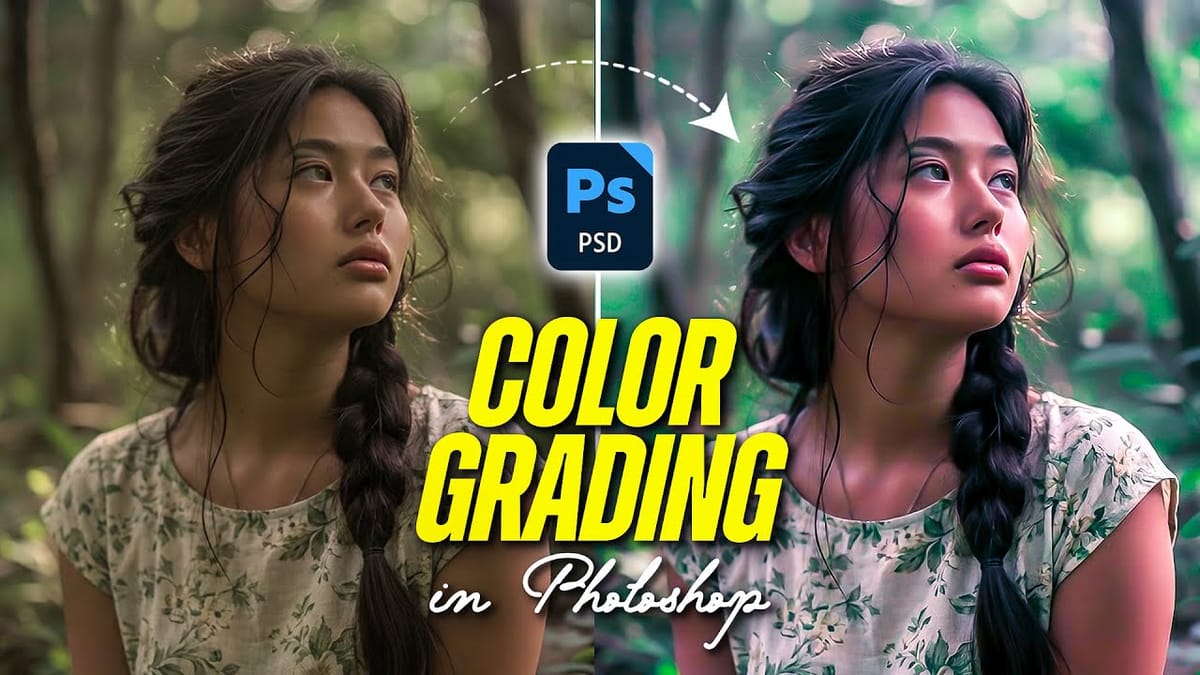
Photoshop’s New Color and Temperature Tool for Advanced Color Grading
Photoshop’s latest update introduces temperature and tint controls directly into the adjustment layer panel, bringing white balance tools from Camera Raw into the main editing workspace. This addition transforms color grading workflows by enabling precise local adjustments with custom brushes and blend modes. The new Color and Vibrance adjustment layer
 F64 Academy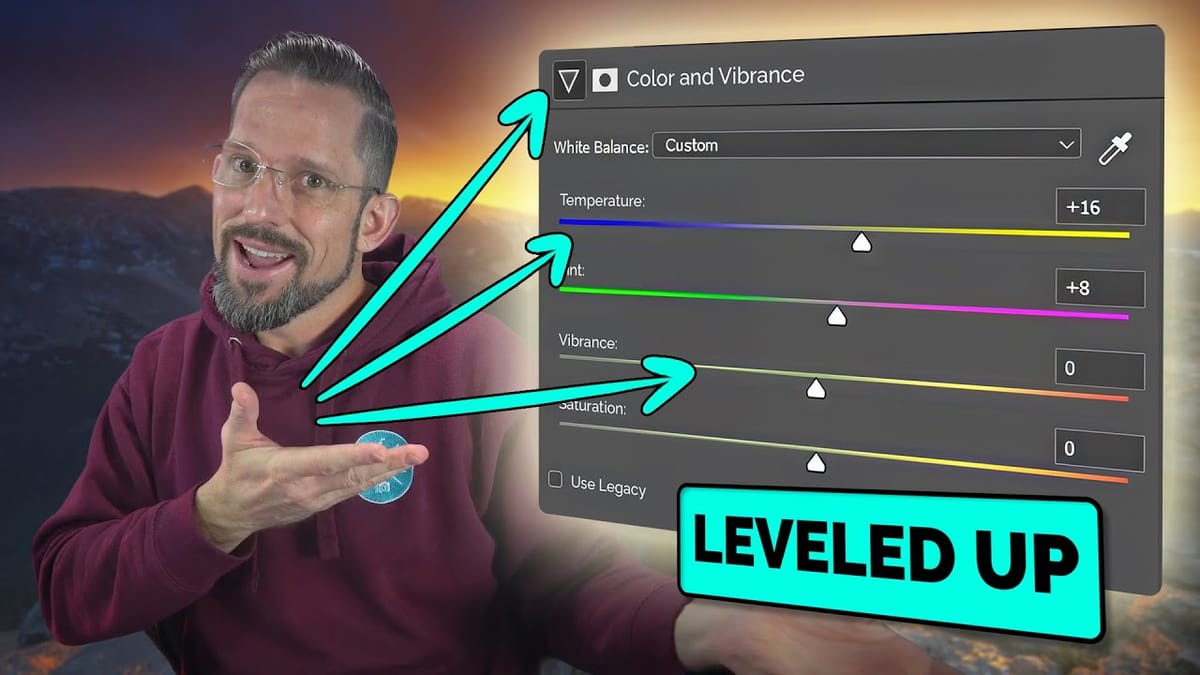
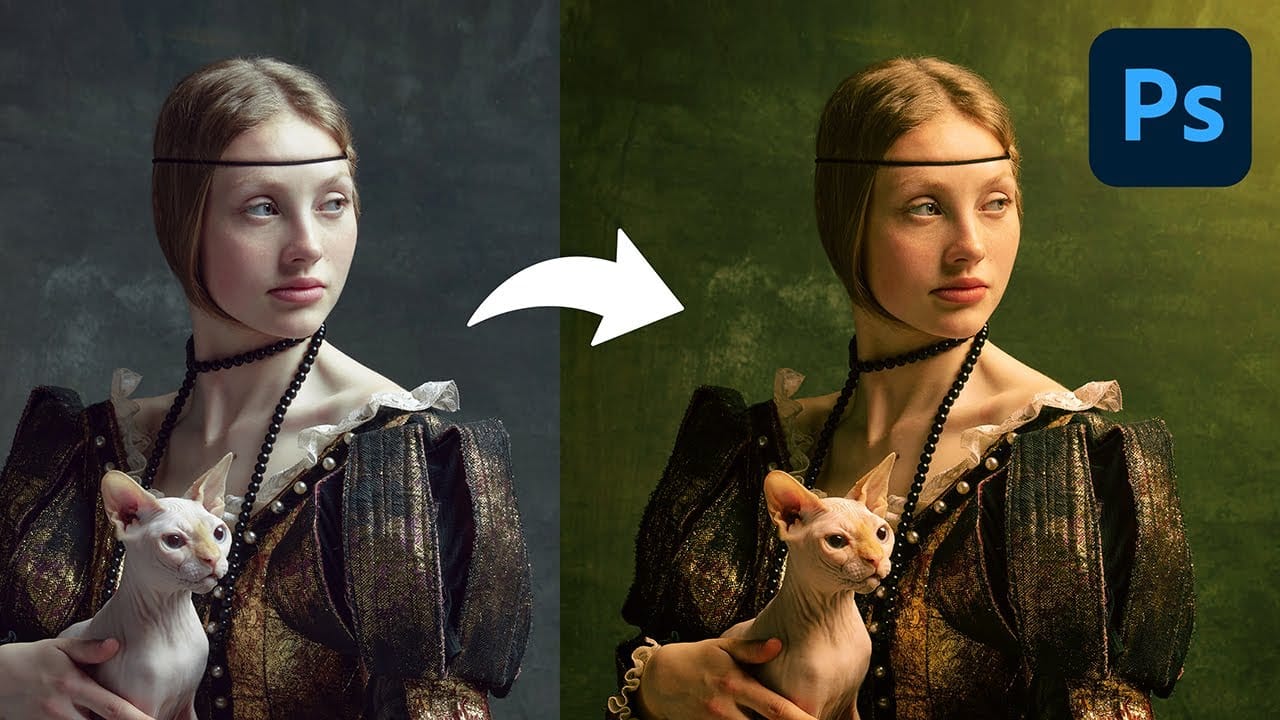
Create a Professional Color Grade in 90 Seconds in Photoshop
Cinematic color grading transforms ordinary photos into visually compelling narratives, creating mood, directing focus, and enhancing storytelling. This subtle yet powerful technique allows photographers and digital artists to infuse their images with the atmospheric depth and professional finish often seen in film.
In this concise tutorial, you'll discover a rapid workflow for achieving a cinematic color grade directly within Photoshop. The method leverages the powerful Camera Raw filter as a
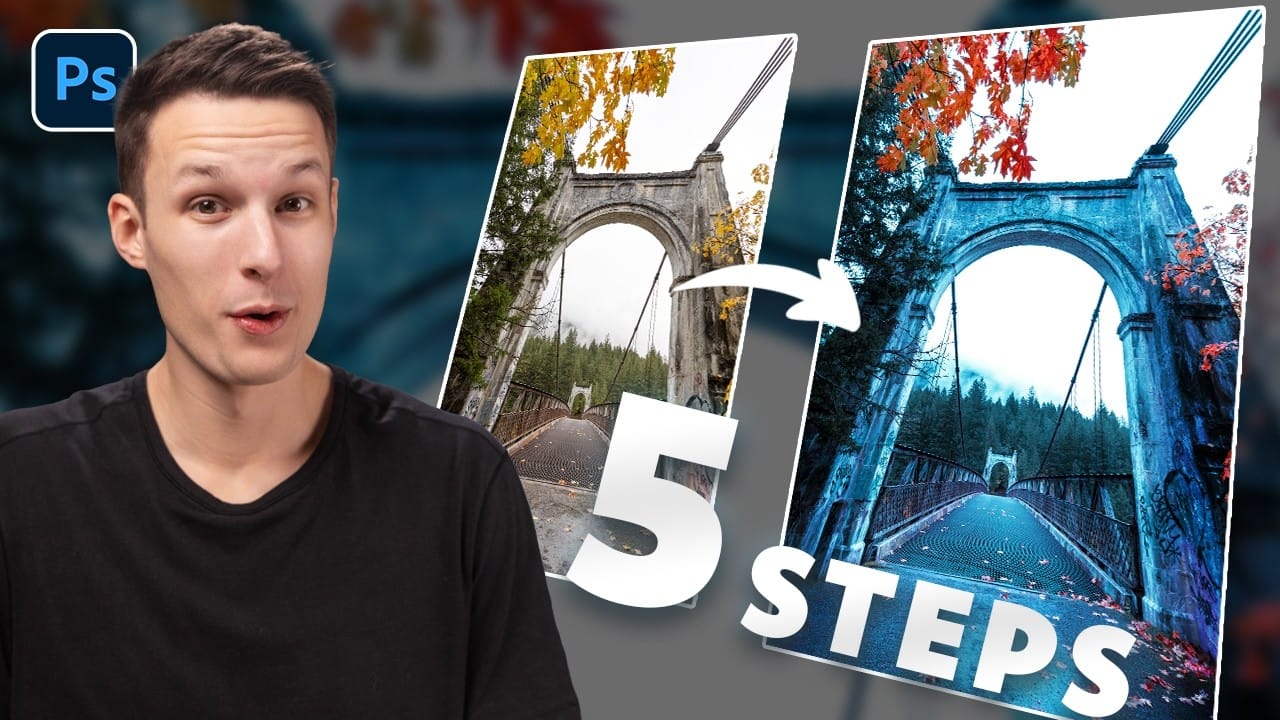
How to Create Dramatic Colors in Photoshop: A 5-Step Color Grading Process
Photography often captures moments in natural tones, but sometimes an image calls for something bolder. Dramatic color grading transforms ordinary photos into striking visual statements that grab attention and evoke emotion.
This comprehensive approach combines Camera Raw adjustments with Photoshop's powerful color tools to create rich, cinematic looks. The process works especially well for outdoor scenes where you can push blues, oranges, and complementary colors to their limits.
Watch the T
Generate unlimited one-click color filters in Photoshop
In this tutorial, PiXimperfect shows viewers how to create one-click color filters in Photoshop. The process involves combining the concepts of Gradient Fill, Gradient Maps, Blend Modes, and Blend If. By following these steps, users can generate unlimited unique filters with ease.
PiXimperfect takes the viewer through each technique, providing clear instructions and demonstrations. The tutorial promises to help users create "the most awesome filters automatically in Photoshop." With this knowle