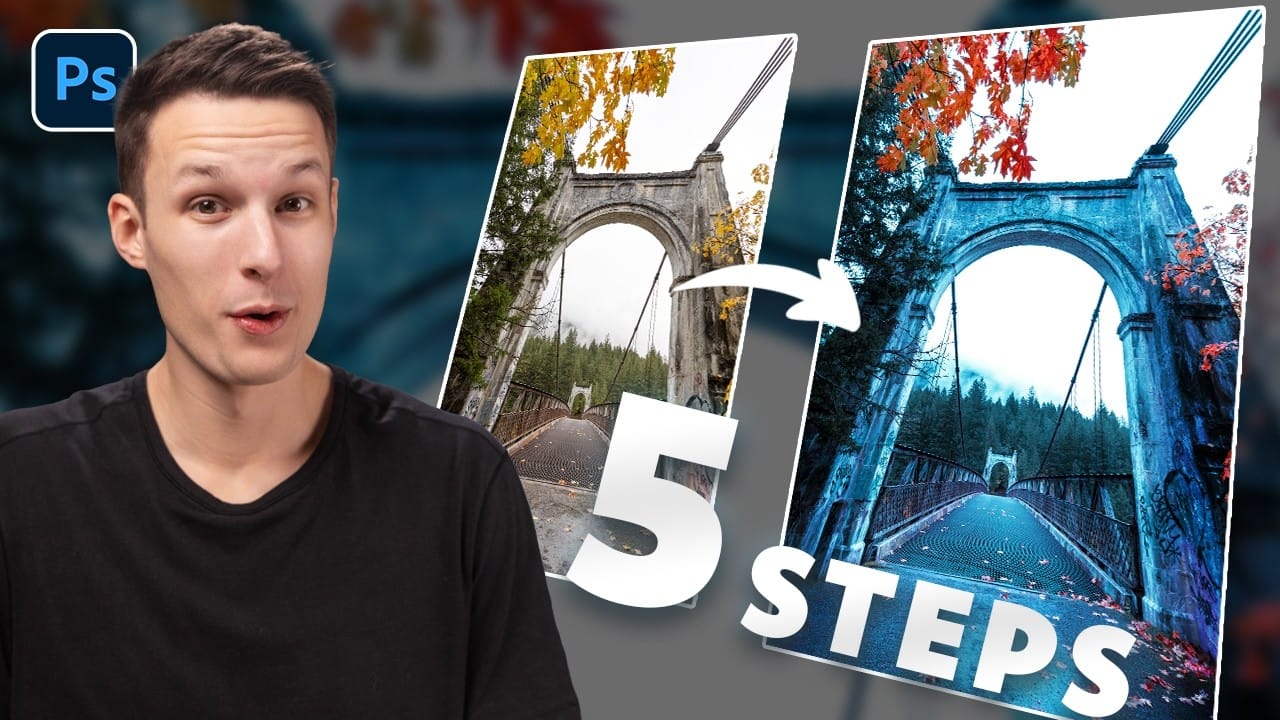
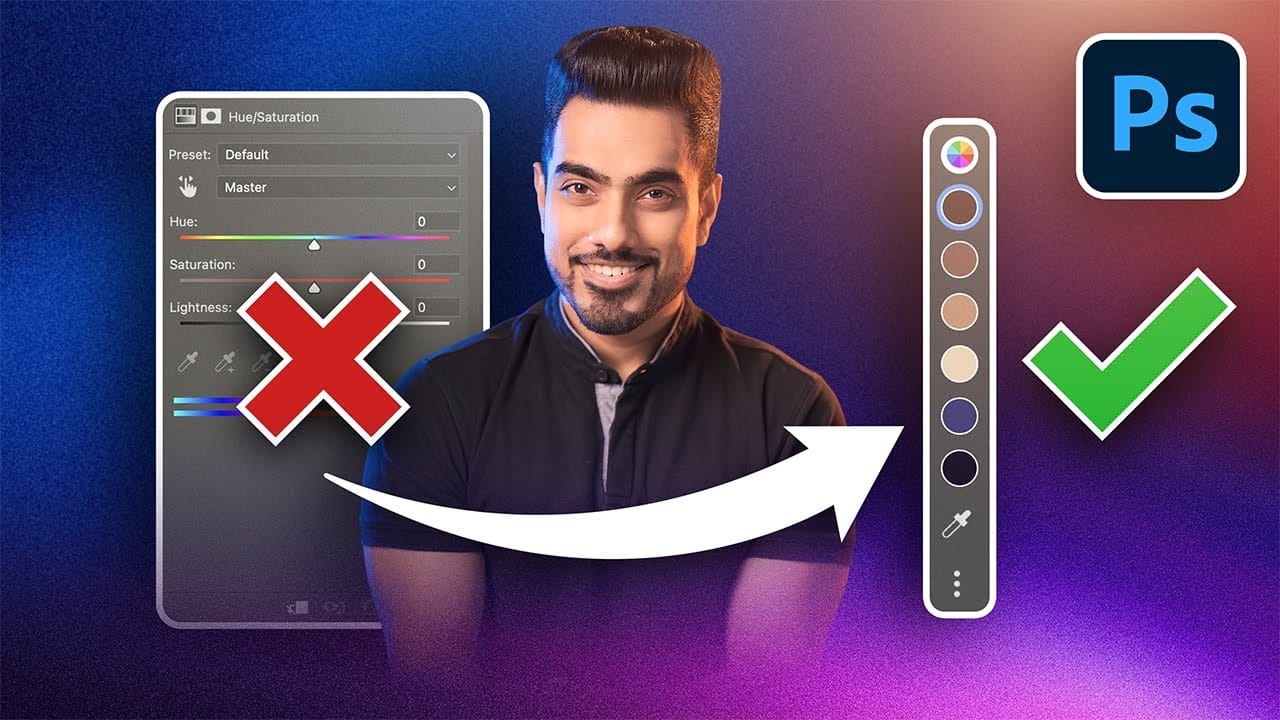
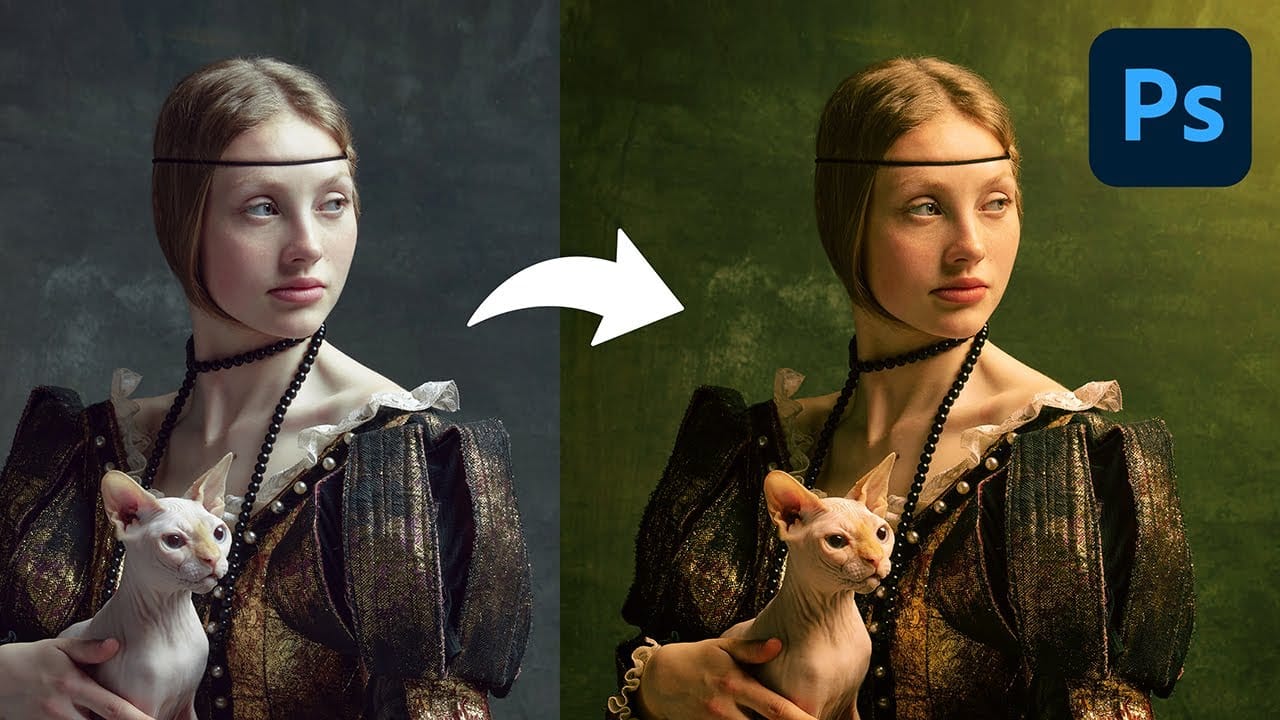
Photoshop's latest update introduces temperature and tint controls directly into the adjustment layer panel, bringing white balance tools from Camera Raw into the main editing workspace. This addition transforms color grading workflows by enabling precise local adjustments with custom brushes and blend modes.
The new Color and Vibrance adjustment layer goes beyond simple white balance correction. It functions as a sophisticated color grading tool that affects both chromatic colors and grayscale values, creating warmer or cooler tones that respond more naturally than traditional color balance adjustments.
Watch the Video
Video by f64 Academy. Any links or downloads mentioned by the creator are available only on YouTube
Practical Tips
Master these essential techniques to maximize the power of Photoshop's temperature and tint controls:
- Use the tool for local color grading rather than global white balance correction - paint warm light on subjects and cool tones in backgrounds for natural depth separation
- Combine temperature adjustments with Blend If controls to target specific tonal ranges - apply cool blues only to shadows while preserving warm highlights
- Duplicate and invert masks to create complementary warm/cool effects - select your subject for warmth, then invert the mask to apply coolness to the background
- Experiment with blend modes like Vivid Light combined with reduced fill opacity to enhance the natural luminosity changes that come with temperature shifts
- Think like a painter when mixing temperature and tint - add magenta to yellows for richer warmth, or green to yellows for cooler variations
Related Articles and Tutorials
Explore these advanced color grading techniques to expand your creative toolkit: