New Camera Raw Adjustment Layers in Photoshop: Color Grading, Clarity, and Grain

New Camera Raw Adjustment Layers in Photoshop: Color Grading, Clarity, and Grain

Working with multiple layers in Photoshop traditionally required complex workarounds to apply Camera Raw adjustments. The old process involved merging layers, converting to smart objects, and losing the flexibility that makes adjustment layers so powerful.

Three new adjustment layers bring Camera Raw's most useful tools directly into your layers panel. These additions eliminate the need for destructive editing while maintaining all the masking and blending capabilities you expect from adjustment layers.

Watch the Video

Video by PiXimperfect. Any links or downloads mentioned by the creator are available only on YouTube

Practical Tips

Essential techniques for using the new Camera Raw adjustment layers effectively:

  • Use the Color and Vibrance adjustment layer's eyedropper tool to quickly correct white balance by clicking on neutral areas
  • Apply multiple Color and Vibrance layers with different settings and use masks to target specific areas like faces and bodies separately
  • Control where adjustments appear using blend-if sliders - hold Alt and drag to create smooth transitions between affected and unaffected areas
  • Access Clarity and Dehaze layers in the beta version for dramatic contrast and atmosphere effects
  • Position the Grain adjustment layer at the top of your layer stack and use opacity or density controls to fine-tune the effect

Explore more advanced editing techniques and Camera Raw workflows:
Big New Unique Features in Adobe Camera Raw 17 That Are Not Even in Lightroom.
According to Colin Smith from Photoshop Cafe, the latest update for Adobe Camera Raw, version 17.0, includes some impressive new features that significantly improve the process of editing raw images. * One standout feature is the enhanced AI Noise Reduction. The update applies noise reduction to the original raw file, meaning it doesn't create an extra file like it used to. You can find this feature under the Detail panel and adjust the amount of noise reduction you want to apply. This is espe
How to Create Perfect Black and White Photos Using Camera Raw Filter in Photoshop
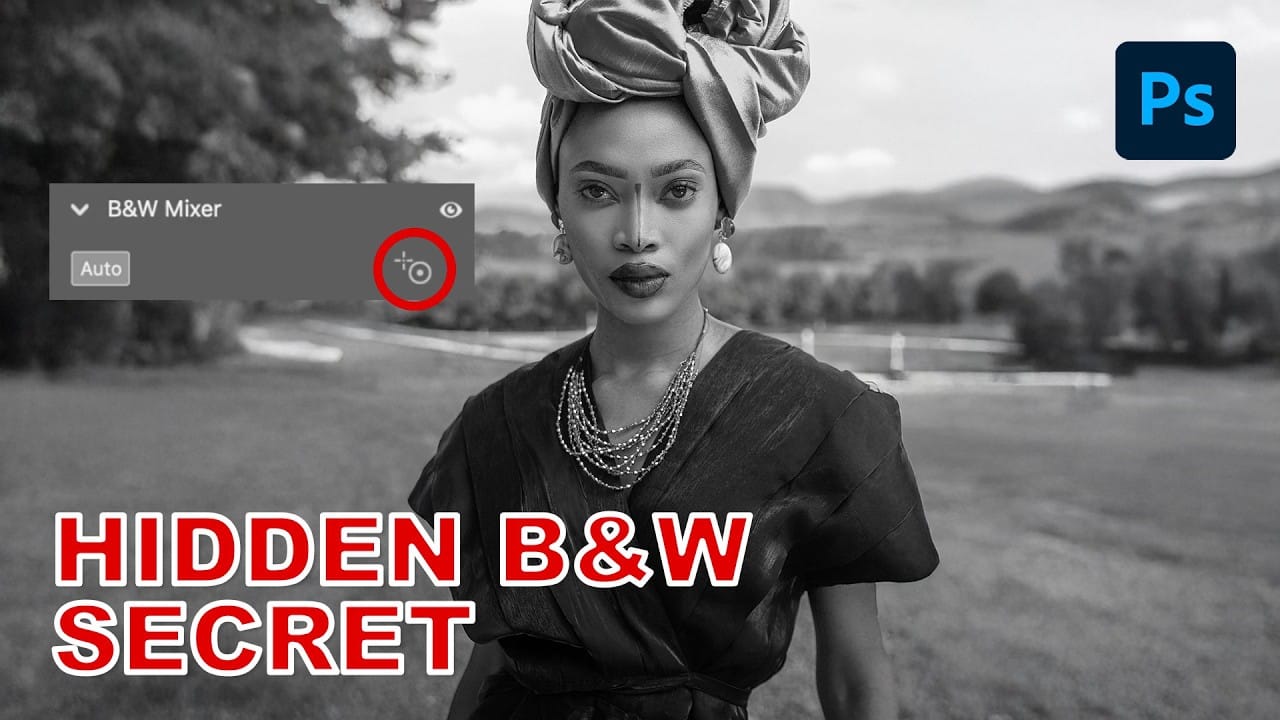
Camera Raw's black and white mixer transforms color photos into striking monochrome images with precision control. The built-in adjustment tool lets you click and drag directly on your image to lighten or darken specific tones. This non-destructive method preserves your original photo while giving you complete creative control over contrast and tonal balance. Watch the Tutorial Essential Tips for Black and White Conversion * Convert your layer to a Smart Object first by choosing Filter >
Master Photoshop Adjustment Layers for Non-Destructive Editing
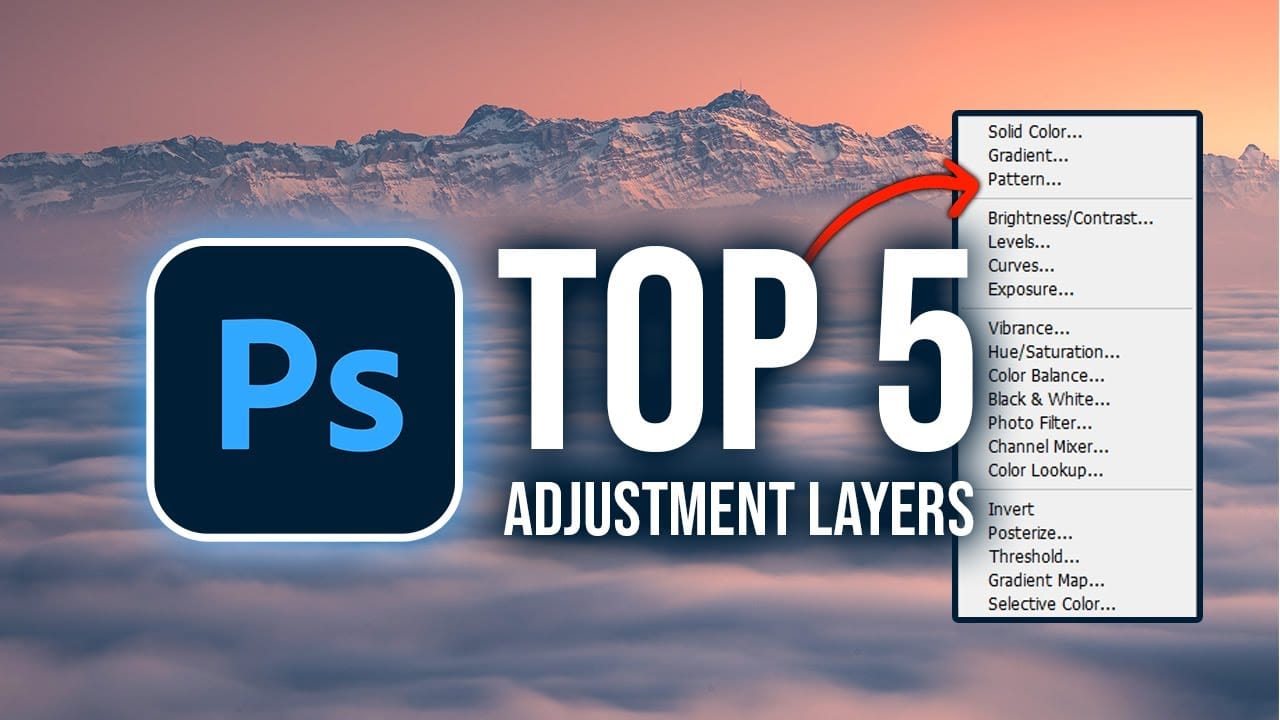
Fine-tuning images without destroying original pixel data transforms ordinary photos into compelling visuals. Adjustment layers provide the flexibility to experiment with colors, contrast, and tones while maintaining complete control over every edit. This comprehensive guide demonstrates how to harness Photoshop's most powerful adjustment layers for landscape photography, from basic contrast enhancements to sophisticated color grading techniques. Watch the Tutorial Understanding Non-Destruc
Complete Photoshop Editing Workflow: 5 Steps from Raw to Polished
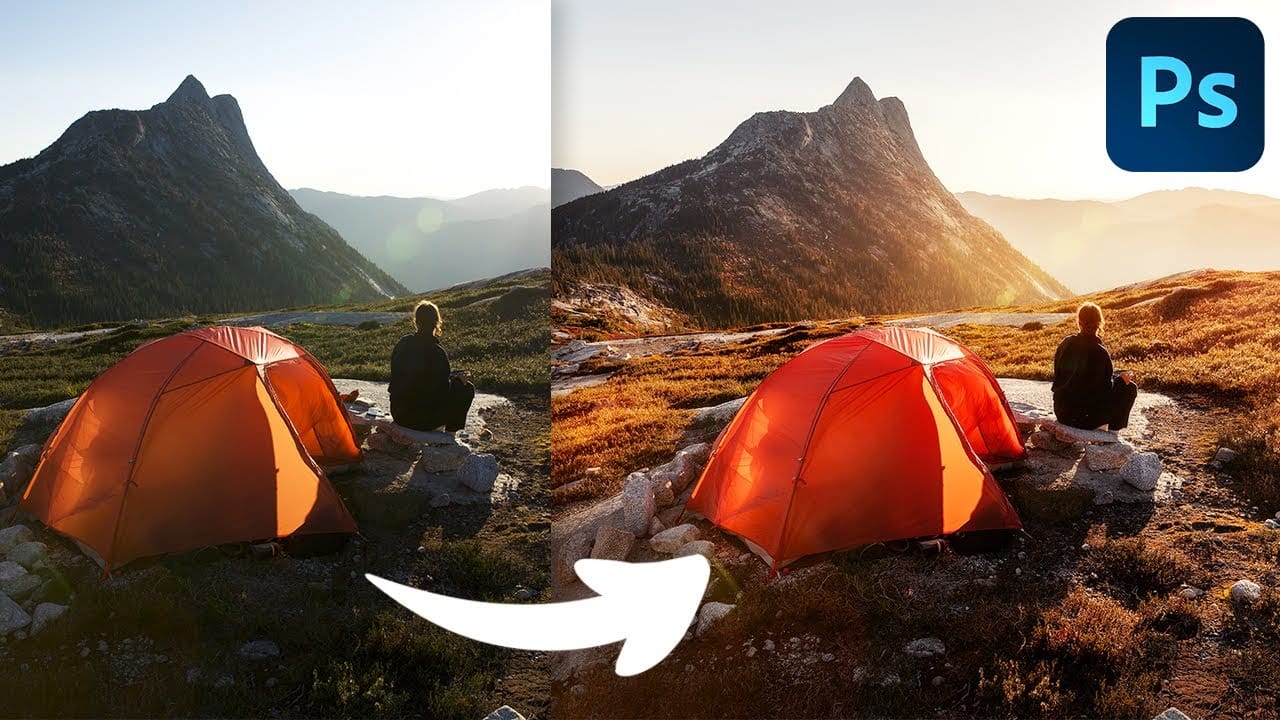
Photoshop offers endless possibilities for photo enhancement, but many photographers never move beyond basic adjustments because the software feels overwhelming. This comprehensive workflow breaks down photo editing into five manageable stages that work consistently across different photography styles. The systematic approach covers everything from initial raw processing to advanced lighting techniques, providing a reliable framework for transforming any photograph into a polished final image.
How to Use AI Masking in Adobe Camera Raw for Professional Photo Editing
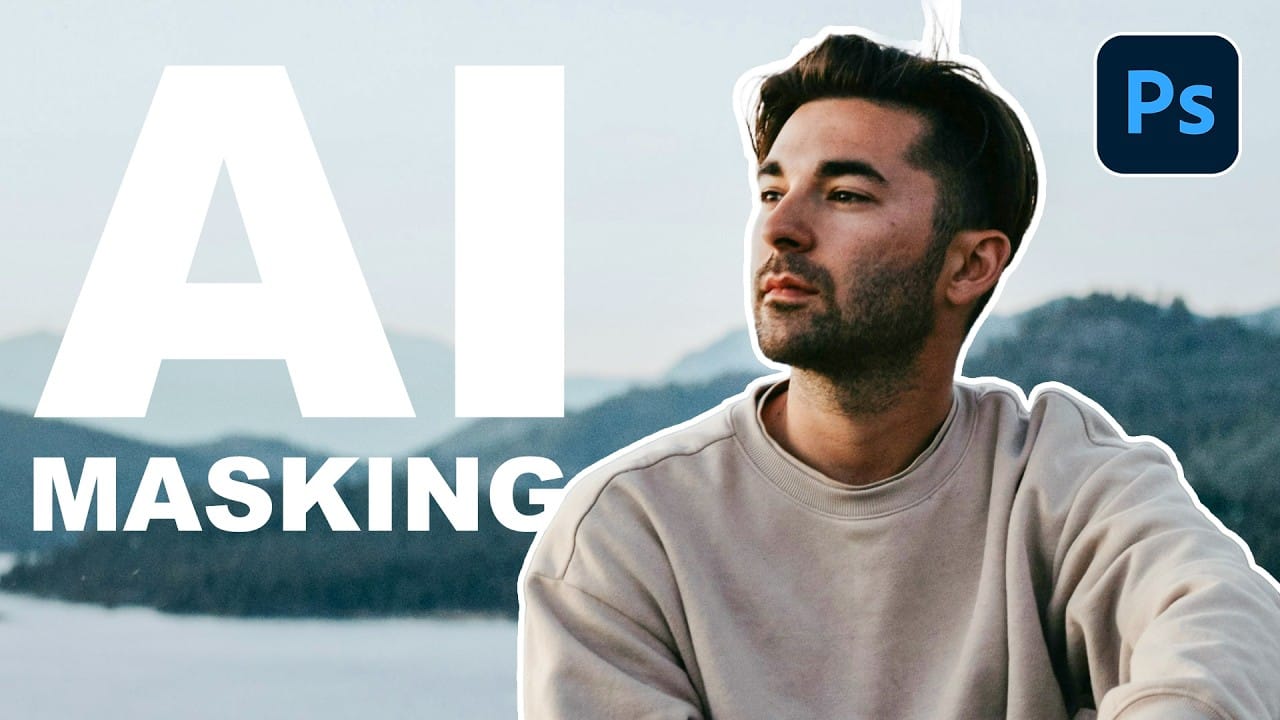
Adobe Camera Raw's AI masking tools automatically detect subjects, backgrounds, skies, and landscapes, letting you make precise adjustments to specific areas of your photos. These intelligent masks eliminate the need for manual selection work, while allowing you to combine and refine them for complete creative control. The technique works with any image format and preserves all your adjustments when using smart objects, making it perfect for non-destructive editing workflows that you can modify
Transform Your Photos with These Photoshop Masks
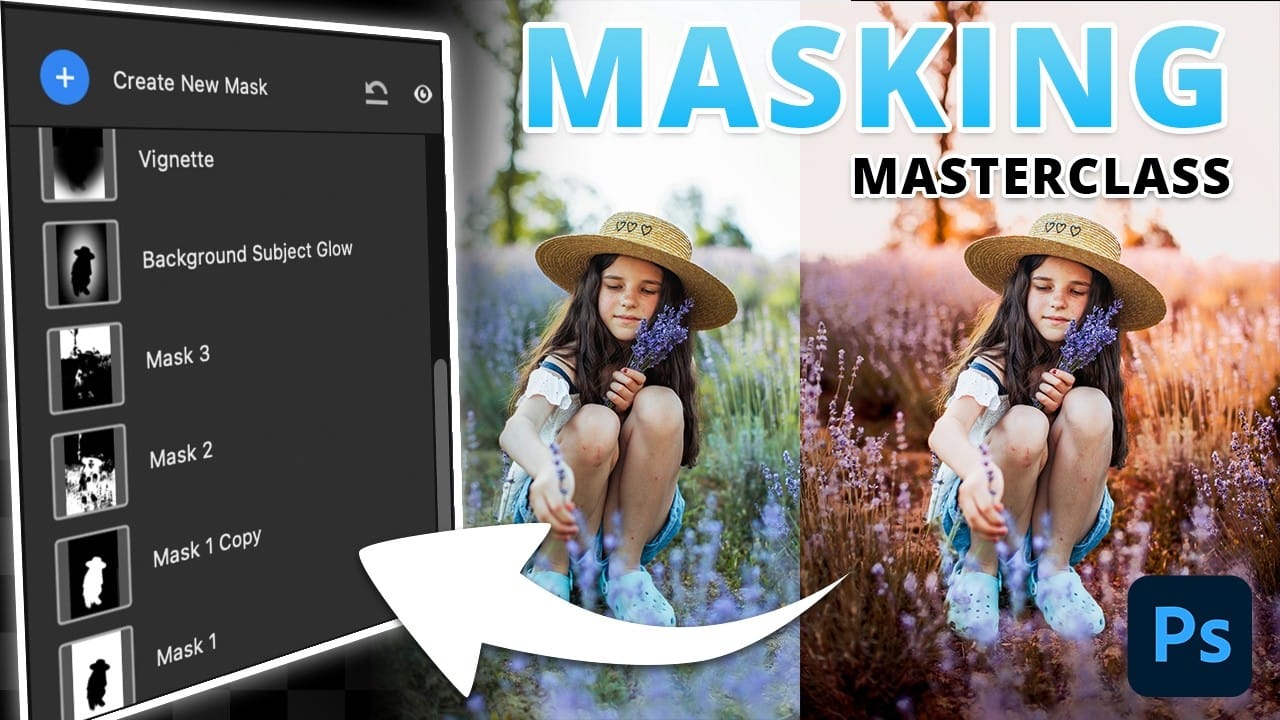
Masking in Photoshop is a powerful technique to isolate and enhance different parts of an image. However, many users find it complicated and time-consuming, often sticking to basic masks or selections that limit creative control. This can make photo editing feel frustrating and slow, especially when trying to achieve subtle but impactful adjustments. This tutorial introduces a structured masking workflow within Camera Raw that simplifies the process while giving you precise control over highlig
Unlocking the Power of Layer Masks in Photoshop
Layer masks are a fundamental feature in Photoshop that allow for greater control over images. They enable you to hide or reveal portions of a layer without permanently altering the original content. This non-destructive editing approach is beneficial for making precise adjustments to your designs. You can use layer masks in various ways. For example, they help blend multiple images, create seamless transitions, or apply effects to specific areas. By painting on the mask with black or white, yo
How to Color Correct Photos in Adobe Camera Raw
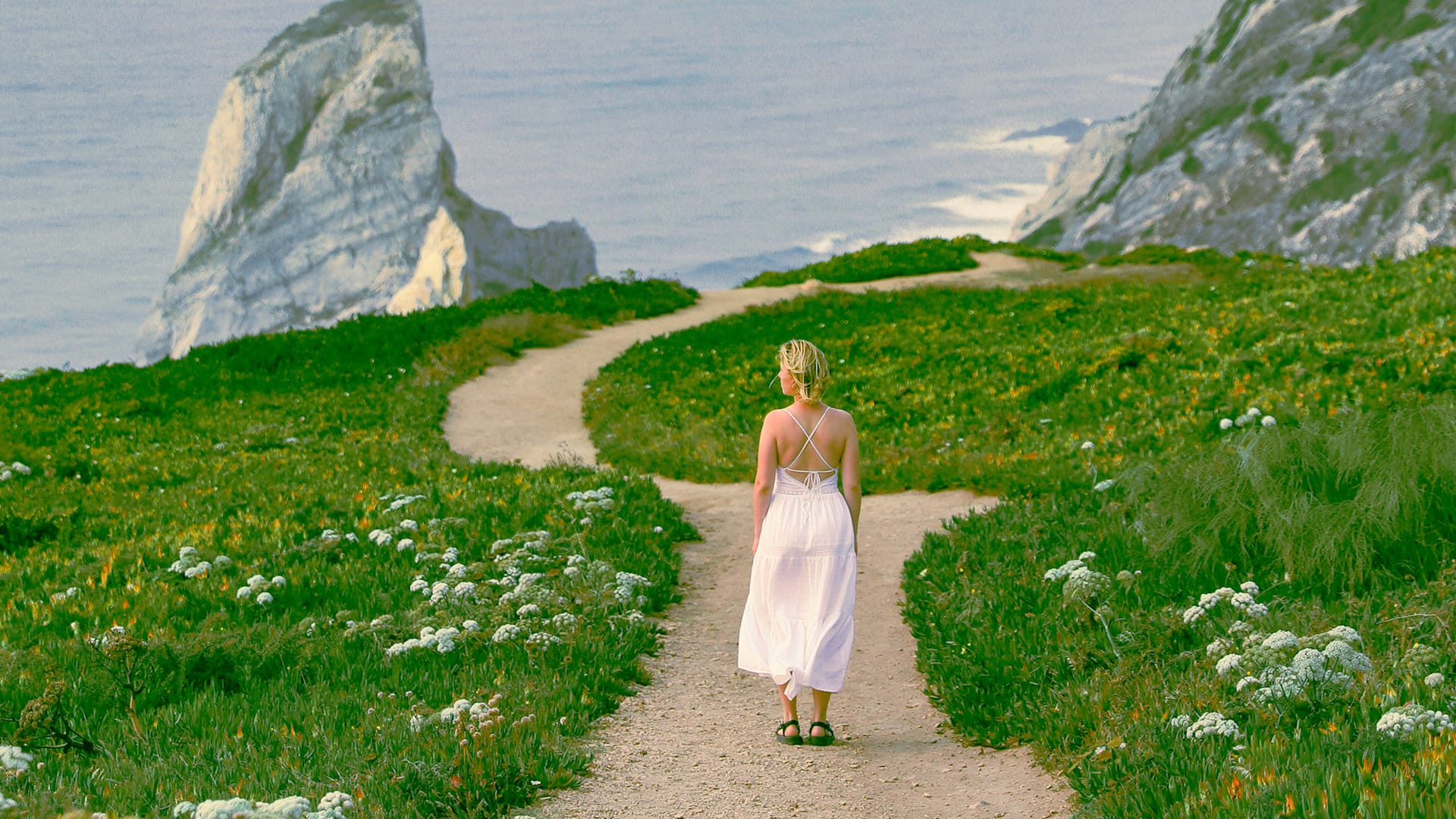
Color toning in Photoshop is an essential skill for anyone looking to enhance their images. With the Camera Raw Filter, you can easily adjust the warmth and coolness of your photos, bringing out the desired mood and atmosphere. This feature allows you to go beyond basic edits and introduce a dynamic range of tones that can transform your work. In addition, creating custom presets can simplify your editing process significantly. By saving your favorite adjustments, you can apply them to future p
10 little-known Photoshop features you should really learn (2025 Update)
Photoshop's true power isn't just in its headline features—it's in the hidden gems that can transform your workflow overnight. While everyone knows about layers and the healing brush, these lesser-known capabilities can save you hours and open up creative possibilities you never knew existed. If you're a seasoned professional or an ambitious beginner, these 10 features will give you that unfair advantage that separates efficient creators from those still clicking through endless menus. 1. Ble

Get tutorials & freebies delivered to you.

Subscribe to the Photoshop Roadmap newsletter, a weekly roundup of new tutorials, insights and quality downloads, trusted by 6500+ readers.

You might also like

How to Create Circle Cropped Photos with Transparent Backgrounds in Photoshop

Circular cropping transforms standard photographs into clean, professional profile images perfect for websites, social media, and presentations. The frame tool method creates non-destructive crops with transparent backgrounds that export seamlessly across different platforms. This streamlined workflow eliminates the need for complex selections or masks while maintaining full control over image...

How to Use Generative Upscale to Restore and Enhance Low-Resolution Images in Photoshop

Low-resolution images often limit your creative projects, especially when you need sharp prints or high-quality displays. Photoshop's Generative Upscale feature transforms small, pixelated photos into crisp, detailed images using AI-powered enhancement. This tool offers three distinct AI models, each designed for specific image types—from landscapes and portraits...

How to Use Harmonize to Automatically Match Lighting in Photoshop Composites

Creating seamless composites traditionally requires hours of manual color correction and lighting adjustments. The new Harmonize tool changes this by automatically analyzing your background and matching your subject's lighting, shadows, and color tones with a single click. This AI-powered feature eliminates the need for complex adjustment layers and...

How to Use Adobe Photoshop in ChatGPT for Photo Editing

Adobe Photoshop is now integrated directly into ChatGPT, allowing you to edit photos using simple text descriptions. This new feature lets you enhance images, apply creative effects, and make targeted adjustments without needing a Photoshop subscription. You can describe what you want to change and fine-tune adjustments using familiar Photoshop...

How to Fix Skin Tones in Photoshop - Complete Guide

Skin tones can make or break a portrait, yet color casts and uneven lighting often leave subjects looking unnatural or flat. Whether dealing with mixed lighting conditions, camera white balance issues, or post-processing mishaps, getting skin colors right requires a systematic approach that works consistently across different scenarios. This comprehensive...

You’ve successfully subscribed to Photoshop Roadmap
Welcome back! You’ve successfully signed in.
Great! You’ve successfully signed up.
Success! Your email is updated.
Your link has expired
Success! Check your email for magic link to sign-in.