How to Use the Eyedropper Tool in Photoshop

How to Use the Eyedropper Tool in Photoshop

The eyedropper tool remains one of Photoshop's most fundamental utilities for color selection and matching. This seemingly simple tool offers sophisticated sampling options and workflow shortcuts that can significantly improve color accuracy and creative control in photo editing projects.

This tutorial demonstrates the eyedropper tool's core functions, from basic color sampling to advanced techniques like creating multiple sample points and using color averaging for background replacement. You'll discover keyboard shortcuts and sampling strategies that make color selection more precise and efficient.

Watch the Tutorial

Video by PHLEARN. Any links or downloads mentioned by the creator are available only on YouTube

Understanding Color Sampling Methods

Color sampling accuracy depends heavily on the sample size you choose. Point sampling captures the exact color value of individual pixels, which can result in significant color variation when clicking on adjacent areas. This precision becomes problematic when you need consistent color selections across textured or slightly varied surfaces.

Averaging methods solve this challenge by calculating the mean color value across a specified area. Options like 3x3, 5x5, or larger averaging areas provide more stable color selections that represent the overall tone of a region rather than individual pixel variations. The larger the averaging area, the more consistent your color selections become across similar surfaces.

This distinction becomes crucial when working with photographs that contain natural textures, gradients, or subtle color variations. Sample size selection directly impacts the final appearance of color corrections, background replacements, and color matching operations throughout your editing workflow.

Practical Tips for Using the Eyedropper Tool

  • Use the I key to quickly access the eyedropper tool, and hold Alt/Option while using the brush tool to temporarily switch to eyedropper mode.
  • Hold Ctrl/Cmd and click to access sample size options directly, allowing you to adjust averaging without visiting the toolbar.
  • Click normally to set foreground color, or hold Alt/Option and click to set the background color with a single tool.
  • Hold Shift and click to create multiple sample points that track color values in the Info panel, useful for monitoring color consistency.
  • Choose larger averaging areas (like 51x51) when sampling colors for background replacement to ensure smooth, consistent results.

Explore more advanced color and selection techniques in Photoshop.

Learn Photoshop by Combining Tools and Techniques
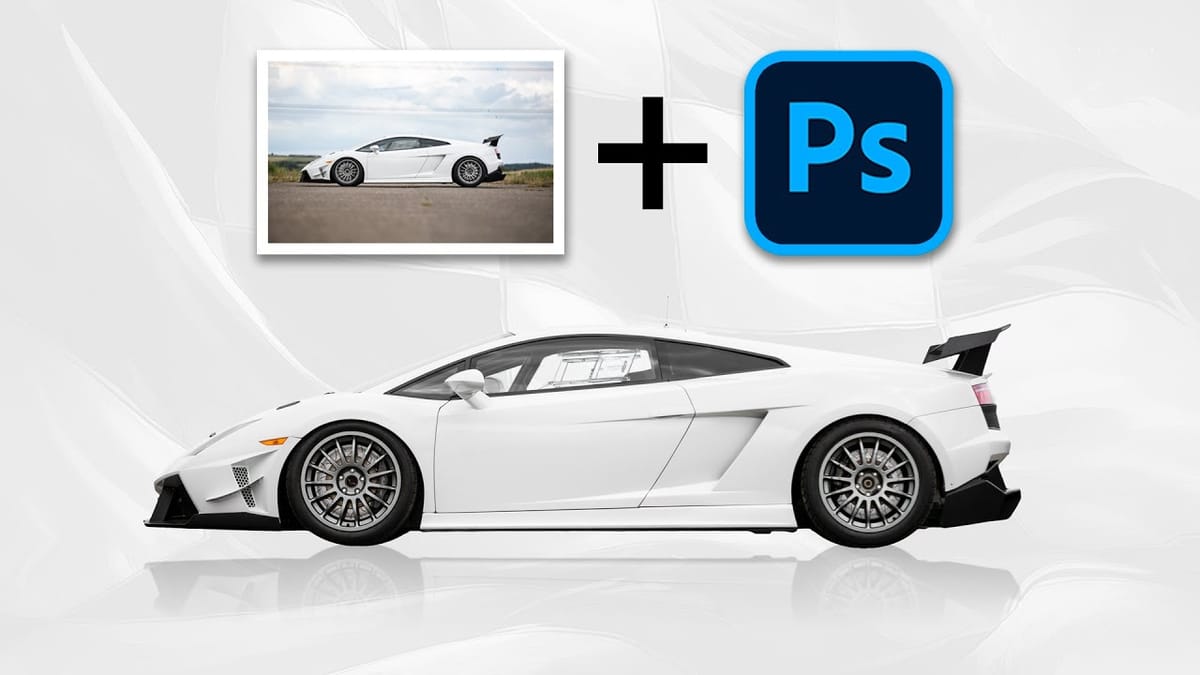
Learning Photoshop can be an exciting journey, especially when you explore various techniques and tools. This approach allows you to understand how different elements work together and enhance your creativity. In this presentation, you will follow along as the process begins with a straightforward out-of-camera photograph of a Supercar. Through
7 Photoshop Tools Replaced by AI: Are They Still Relevant?
Adobe’s integration of AI-powered features has fundamentally changed how photographers and designers approach common editing tasks. From reflection removal to noise reduction, many traditional Photoshop tools now have AI counterparts that promise faster results with minimal manual work. This video demonstrates how seven classic Photoshop tools compare against their AI
Customize and Create Your Own Photoshop Tools
Unlock the Power of “Tool Presets” to Create Custom Tools & Make Your Workflow Extremely Fast! Simplify your Photoshop life by learning the concepts of Tool Presets, and then, we will explore some built-in presets to get you started. In this tutorial, we will learn to create two super useful custom tools, and also how […] More

Get tutorials & freebies delivered to you.

Subscribe to the Photoshop Roadmap newsletter, a weekly roundup of new tutorials, insights and quality downloads, trusted by 6500+ readers.

You might also like

How to Create Circle Cropped Photos with Transparent Backgrounds in Photoshop

Circular cropping transforms standard photographs into clean, professional profile images perfect for websites, social media, and presentations. The frame tool method creates non-destructive crops with transparent backgrounds that export seamlessly across different platforms. This streamlined workflow eliminates the need for complex selections or masks while maintaining full control over image...

How to Use Generative Upscale to Restore and Enhance Low-Resolution Images in Photoshop

Low-resolution images often limit your creative projects, especially when you need sharp prints or high-quality displays. Photoshop's Generative Upscale feature transforms small, pixelated photos into crisp, detailed images using AI-powered enhancement. This tool offers three distinct AI models, each designed for specific image types—from landscapes and portraits...

How to Use Harmonize to Automatically Match Lighting in Photoshop Composites

Creating seamless composites traditionally requires hours of manual color correction and lighting adjustments. The new Harmonize tool changes this by automatically analyzing your background and matching your subject's lighting, shadows, and color tones with a single click. This AI-powered feature eliminates the need for complex adjustment layers and...

How to Use Adobe Photoshop in ChatGPT for Photo Editing

Adobe Photoshop is now integrated directly into ChatGPT, allowing you to edit photos using simple text descriptions. This new feature lets you enhance images, apply creative effects, and make targeted adjustments without needing a Photoshop subscription. You can describe what you want to change and fine-tune adjustments using familiar Photoshop...

How to Fix Skin Tones in Photoshop - Complete Guide

Skin tones can make or break a portrait, yet color casts and uneven lighting often leave subjects looking unnatural or flat. Whether dealing with mixed lighting conditions, camera white balance issues, or post-processing mishaps, getting skin colors right requires a systematic approach that works consistently across different scenarios. This comprehensive...

You’ve successfully subscribed to Photoshop Roadmap
Welcome back! You’ve successfully signed in.
Great! You’ve successfully signed up.
Success! Your email is updated.
Your link has expired
Success! Check your email for magic link to sign-in.