Complex selections in Photoshop just became effortless. The Select Subject tool uses advanced AI to automatically identify and select main subjects in images, even those with intricate details like bicycle spokes or hair.
This tutorial demonstrates how to achieve professional-quality selections with a single click, saving hours of manual masking work.
Watch the Video
Video by Adobe Photoshop. Any links or downloads mentioned by the creator are available only on YouTube
Practical Tips for Using Select Subject
- Access Select Subject through the Contextual Task Bar for quickest results - find it under Window menu if not visible
- Keep Image Processing set to "Cloud" in Preferences for best accuracy, though this requires internet connection
- Click the Mask icon immediately after selection to convert your selection into a layer mask for compositing
- Use Option/Alt-click on the layer mask thumbnail to view the mask details and check selection quality
- Start with Select Subject even for complex images - it handles intricate edges better than manual selection tools
More Tutorials About Photoshop Selection Tools
These tutorials explore additional one-click features and selection techniques in Photoshop.
Magical things you can do in just 1 click in Photoshop
Colin Smith's latest tutorial dives into the incredible power of Photoshop's one-click tools and features. This session reveals how you can harness Photoshop 2020's capabilities to achieve impressive results with minimal effort. Colin demonstrates various techniques that allow you to enhance your images or apply complex effects with just a single click, making advanced editing accessible and efficient.
In this video, you'll learn about features that simplify tasks like color enhancement, applyi
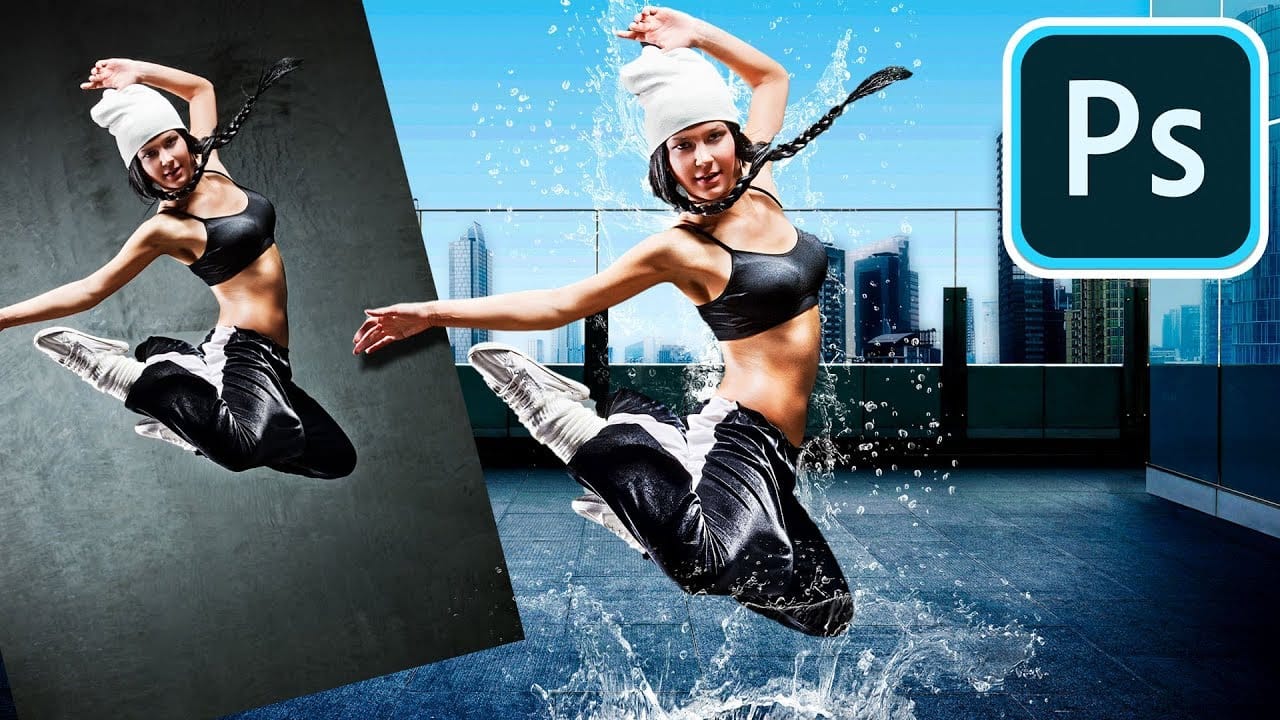
Photoshop's New On-Device Select Subject Tool Matches Cloud Quality
Photoshop's latest update brings cloud-quality selection algorithms directly to your device. This means precise subject selection without internet connectivity or sending images to Adobe's servers.
The new on-device algorithm rivals the cloud version's accuracy, handling complex subjects like bicycle spokes, hair details, and backlit scenes with impressive precision.
Watch the Video
Practical Tips for On-Device Subject Selection
The new on-device algorithm delivers professional-quality sel

Remove All Distractions From a Photo in One Click using Adobe Photoshop
This tutorial by PiXimperfect introduces an impressive new feature in Adobe Photoshop Beta that simplifies photo editing. By utilizing the updated Remove Tool, users can effortlessly eliminate distractions from their images with just one click.
The tutorial highlights how this feature can efficiently remove unwanted elements such as people, power lines, and various other distractions that can detract from the overall quality of a photograph. Ideal for photographers and graphic designers alike,

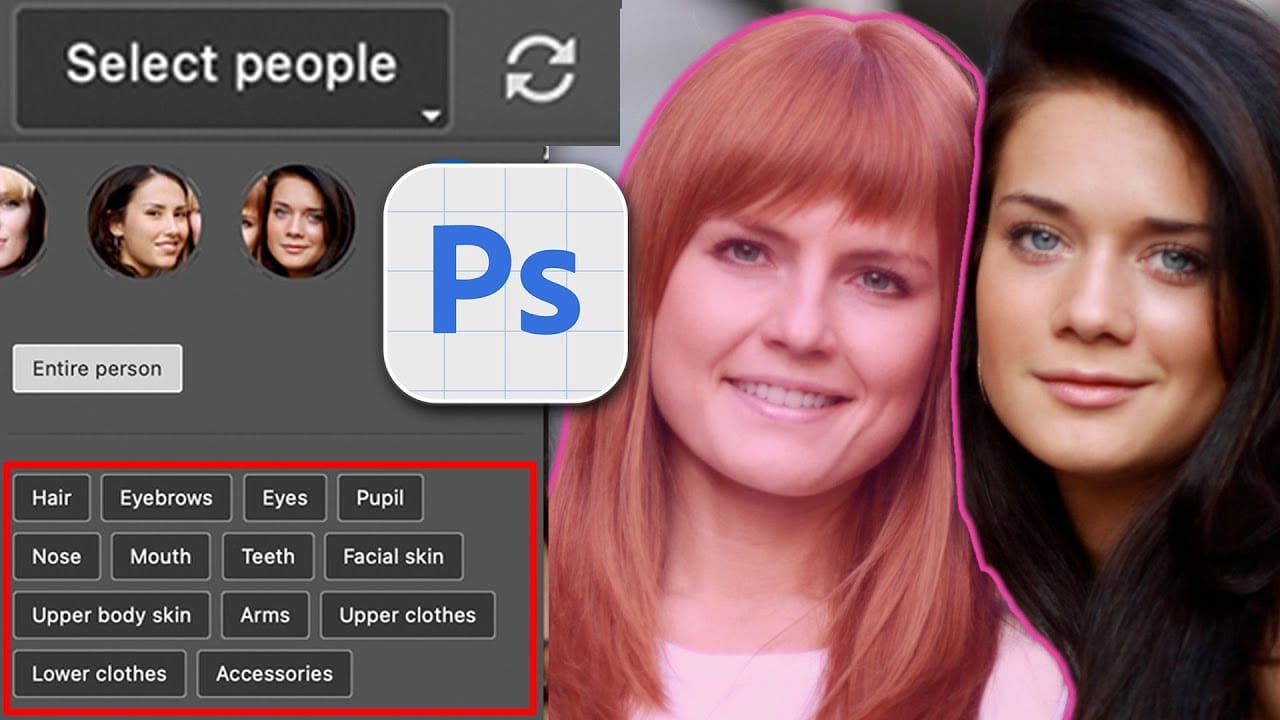
Select People, the most requested new photoshop feature
Achieving precise selections in image editing, especially when dealing with complex subjects like people, has historically been one of Photoshop's most time-consuming tasks. Manual masking of hair, intricate clothing, or multiple individuals often requires significant effort and a keen eye for detail, posing a common challenge for photographers and designers alike.
This video introduces a groundbreaking new feature in Photoshop that dramatically simplifies this process. Viewers will discover ho