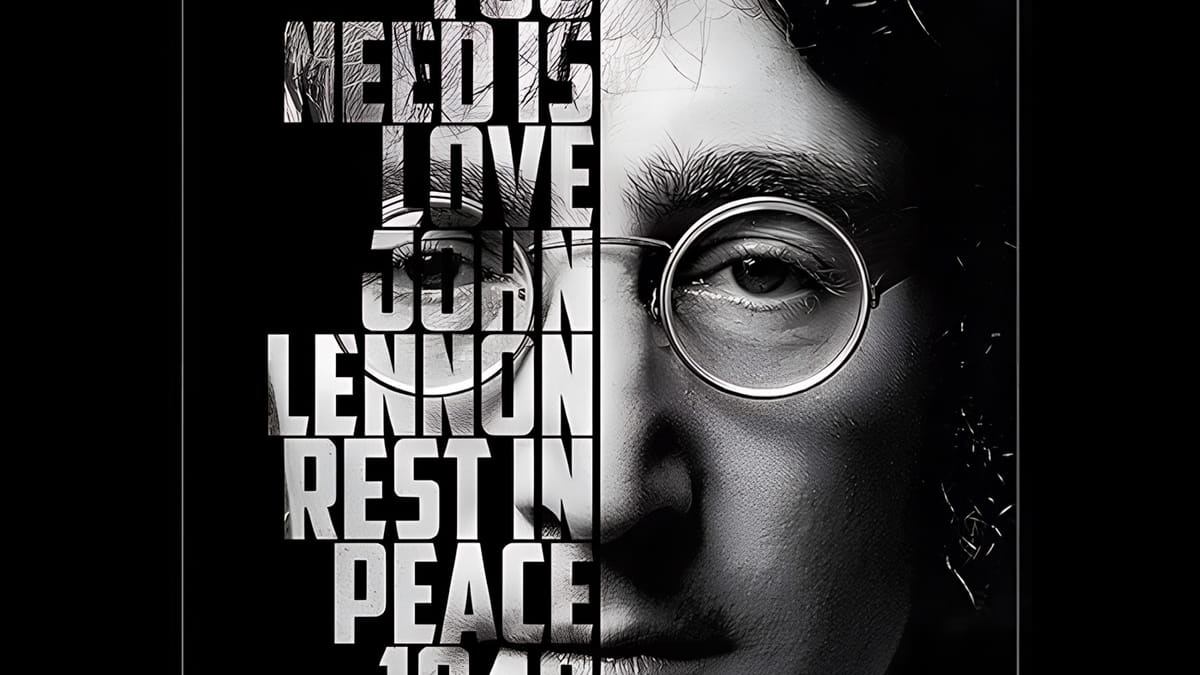
How to Create Typographic Portraits Using AI in Photoshop with Gemini 3

How to Create Typographic Portraits Using AI in Photoshop with Gemini 3

Typographic portraits transform ordinary photos into striking vector-style graphics where flowing text wraps naturally around facial contours and features. This AI-powered technique uses two strategic prompts to first create a high-contrast version of your portrait, then fills it with customizable text that follows the curves and shadows of the face.

The process works with any portrait photo, whether color or black and white, and takes just minutes to complete using the advanced capabilities of Gemini 3's contextual intelligence.

Watch the Video

Video by Photoshop Arthouse. Any links or downloads mentioned by the creator are available only on YouTube

Practical Tips

These key techniques will help you achieve the best results with your typographic portraits:

  • Select your entire image using Ctrl+A (or Cmd+A on Mac) before running each prompt to ensure the AI processes the full portrait
  • Enable the contextual taskbar from Window menu if it's not visible - this provides access to the AI model selection and prompt interface
  • Customize the text theme in your second prompt to match your subject matter, using relevant words that relate to the person or concept in the portrait
  • Use the Properties panel to generate multiple variations of your typographic portrait without re-entering prompts
  • Allow 10-20 seconds processing time for each generation, as the AI analyzes facial contours and text placement simultaneously

Explore more advanced AI techniques and creative workflows for enhanced image transformations:
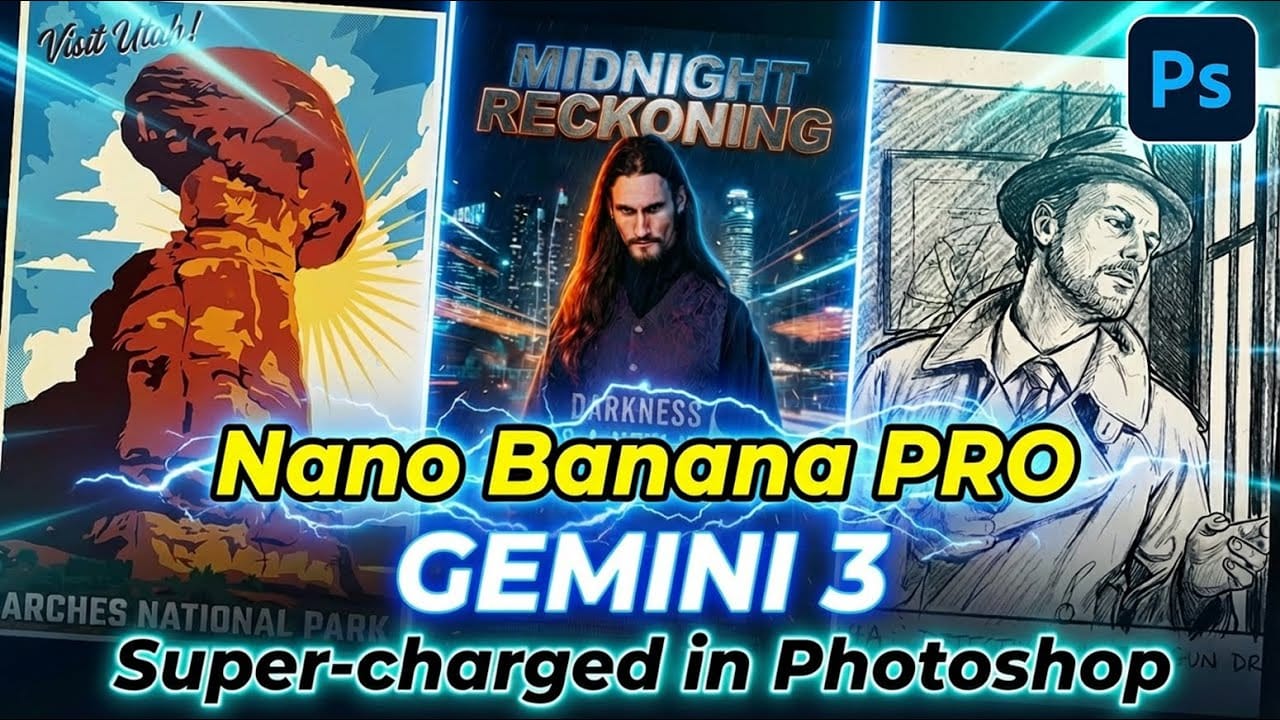
How to Use Gemini 3.0 Nano Banana Pro for Advanced AI Image Transformations in Photoshop
Gemini 3.0 Nano Banana Pro delivers 4K resolution transformations and contextual intelligence that surpasses previous AI models in Photoshop. This advanced system can create movie posters, redesign interiors, sharpen blurry photos, and even translate foreign text while maintaining original design elements. The model costs 10 generative credits per image but handles complex tasks like night-to-day conversions and multi-frame storyboard creation with remarkable accuracy. Watch the Video Pract
How to Use Nano Banana Pro in Adobe Firefly for Advanced AI Image Generation
Adobe Firefly now includes Gemini 3 with Nano Banana Pro, offering sharper 2K image generation with improved text clarity and precision blending. This advanced AI model works seamlessly within Firefly's generative workspace, enabling powerful workflows like multi-image composition and virtual try-on effects. The integration provides access to sophisticated presets and reference image capabilities that go beyond basic Photoshop workflows, making complex generative tasks simple and intuitive. W
Create a cool text portrait in Photoshop – Photoshop Roadmap
Learn how to create a striking typographic portrait poster in Adobe Photoshop, transforming a standard photo into an artwork where text defines the contours of the subject’s face. You’ll practice essential techniques: precise subject selection, background preparation, thoughtful text integration, and subtle refinements to enhance legibility and visual
Create Elegant Christmas Lettering for Your Holiday Designs With Photoshop and Nano Banana
Most of us aren't lettering artists, and creating ornamental text for holiday designs can be tough. The usual alternative is browsing through marketplaces, hoping to find the perfect style—only to discover it's pricey, locked behind a subscription, or bundled with things we don't need. Free decorative fonts help a little, but they don't offer the flowing curves, swirls, and ornaments that give Christmas designs that magical, elegant look. The good news is that AI tools have changed a lot. What

Get tutorials & freebies delivered to you.

Subscribe to the Photoshop Roadmap newsletter, a weekly roundup of new tutorials, insights and quality downloads, trusted by 6500+ readers.

You might also like

How to Create Circle Cropped Photos with Transparent Backgrounds in Photoshop

Circular cropping transforms standard photographs into clean, professional profile images perfect for websites, social media, and presentations. The frame tool method creates non-destructive crops with transparent backgrounds that export seamlessly across different platforms. This streamlined workflow eliminates the need for complex selections or masks while maintaining full control over image...

How to Use Generative Upscale to Restore and Enhance Low-Resolution Images in Photoshop

Low-resolution images often limit your creative projects, especially when you need sharp prints or high-quality displays. Photoshop's Generative Upscale feature transforms small, pixelated photos into crisp, detailed images using AI-powered enhancement. This tool offers three distinct AI models, each designed for specific image types—from landscapes and portraits...

How to Use Harmonize to Automatically Match Lighting in Photoshop Composites

Creating seamless composites traditionally requires hours of manual color correction and lighting adjustments. The new Harmonize tool changes this by automatically analyzing your background and matching your subject's lighting, shadows, and color tones with a single click. This AI-powered feature eliminates the need for complex adjustment layers and...

How to Use Adobe Photoshop in ChatGPT for Photo Editing

Adobe Photoshop is now integrated directly into ChatGPT, allowing you to edit photos using simple text descriptions. This new feature lets you enhance images, apply creative effects, and make targeted adjustments without needing a Photoshop subscription. You can describe what you want to change and fine-tune adjustments using familiar Photoshop...

How to Fix Skin Tones in Photoshop - Complete Guide

Skin tones can make or break a portrait, yet color casts and uneven lighting often leave subjects looking unnatural or flat. Whether dealing with mixed lighting conditions, camera white balance issues, or post-processing mishaps, getting skin colors right requires a systematic approach that works consistently across different scenarios. This comprehensive...

You’ve successfully subscribed to Photoshop Roadmap
Welcome back! You’ve successfully signed in.
Great! You’ve successfully signed up.
Success! Your email is updated.
Your link has expired
Success! Check your email for magic link to sign-in.