How to Create Realistic Embroidery Effects Using Photoshop's Parametric Embroidery Filter

How to Create Realistic Embroidery Effects Using Photoshop's Parametric Embroidery Filter

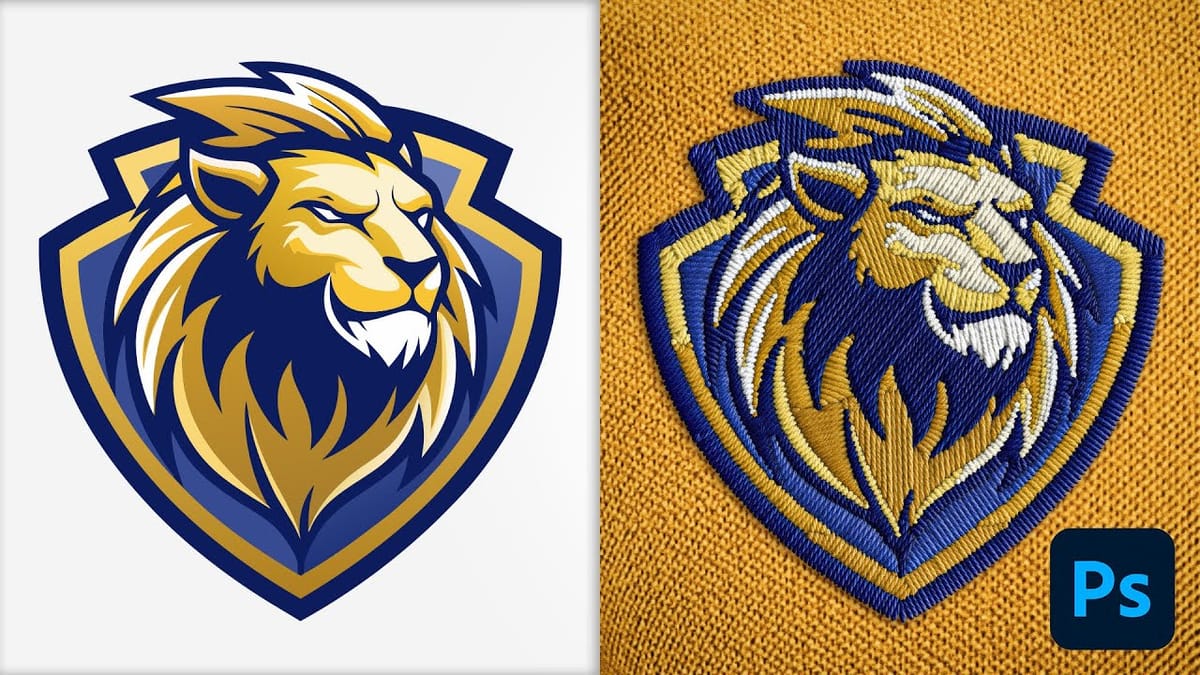
Adobe's introduction of parametric filters in Photoshop beta has opened up new possibilities for creating realistic textile effects without complex manual techniques. The embroidery filter stands out as particularly powerful for transforming logos, graphics, and text into convincing stitched designs with remarkable detail and customization options.

This tutorial demonstrates how to use the new parametric embroidery filter to create authentic-looking knitted embroidery effects. You'll learn the complete workflow from preparing your graphic to fine-tuning thread colors, weave patterns, and surface textures for professional results.

Watch the Tutorial

Video by Photoshop Arthouse. Any links or downloads mentioned by the creator are available only on YouTube

Understanding Parametric Filters in Creative Workflows

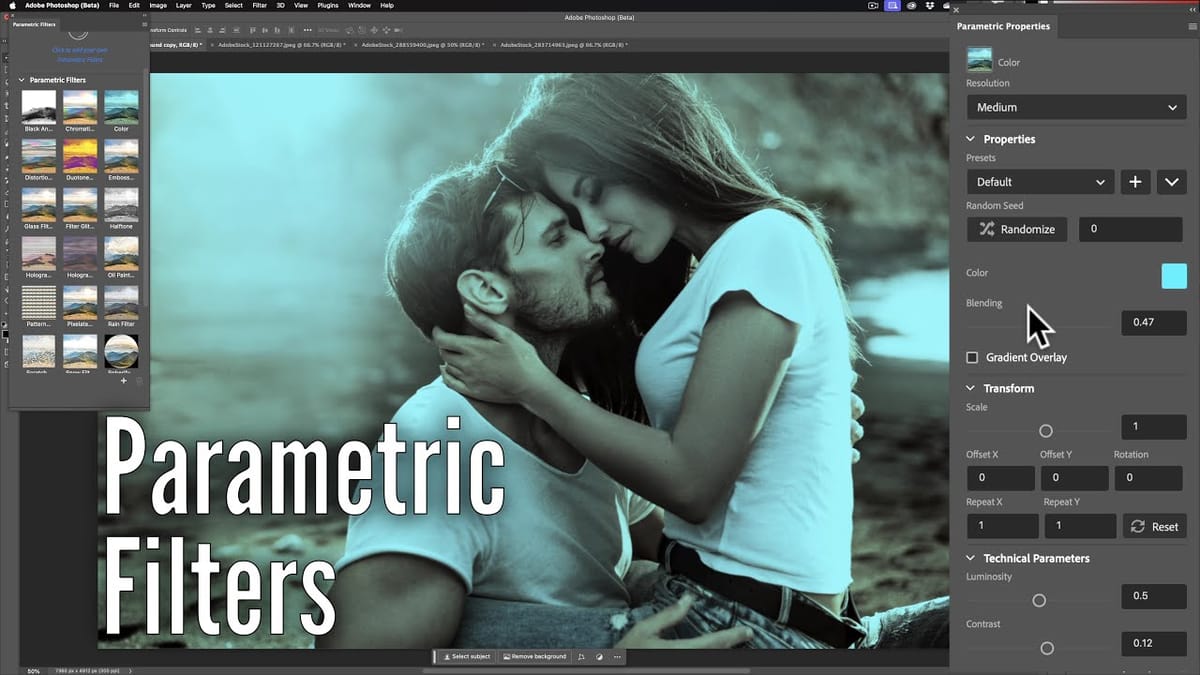
Parametric filters represent a significant shift in how Photoshop handles complex effects, moving beyond static presets to dynamic, adjustable systems. Unlike traditional filters that apply fixed transformations, parametric filters maintain live connections to their source parameters, allowing real-time adjustments without quality loss or the need to restart the process.

The embroidery filter specifically addresses the challenge of creating realistic textile effects, which traditionally required extensive manual work with layer styles, textures, and displacement maps. This filter analyzes the input graphic and generates thread patterns, weave structures, and surface lighting that closely mimic actual embroidered materials.

Working with smart objects becomes particularly important when using parametric filters, as it preserves the original artwork while allowing unlimited experimentation with effect parameters. This non-destructive approach enables creative exploration without compromising the source material.

Practical Tips for Embroidery Effects

  • Convert your graphic to a smart object before applying the embroidery filter to maintain editing flexibility and preserve the original artwork
  • Start with simple, high-contrast graphics or text for best results, as complex images may not translate well to embroidery patterns
  • Experiment with different weave types for each color element to create more realistic and varied textile textures
  • Use the imperfections parameter sparingly to add subtle irregularities that mimic real embroidery without overwhelming the design
  • Adjust thread orientation and height settings to create depth and dimensional contrast between different colored elements

Explore more techniques and creative applications for Photoshop's parametric filter system.

Create Custom Photoshop Parametric Filters with Substance Designer
This tutorial guides you through the process of creating custom Photoshop Parametric Filters using Adobe Substance Designer. It aims to empower you with the skills needed to harness this powerful tool for your creative projects. You will begin with a basic example, which is ideal for grasping the fundamentals of
How to use Parametric Filters in Adobe Photoshop 2024 Beta 25.3
Photoshop’s latest beta version introduces a new feature called parametric filters that allows users to non-destructively modify images with various stylized filters. These filters can be used to add distinct looks to images by applying presets like sepia, vintage or oil painting effects. parametric filters are applied as adjustment layers so users can readjust or […] More
Realistic Embroidery Patch Effect in Photoshop
With the new Embroidery Parametric Filter in Photoshop, creating a realistic embroidery effect has never been easier. This tutorial, led by Jesus Ramirez from PTC Photoshop Training Channel, walks you through each step to transform any design into a beautiful embroidered patch. You’ll learn how to use this filter

Get tutorials & freebies delivered to you.

Subscribe to the Photoshop Roadmap newsletter, a weekly roundup of new tutorials, insights and quality downloads, trusted by 6500+ readers.

You might also like

How to Create Circle Cropped Photos with Transparent Backgrounds in Photoshop

Circular cropping transforms standard photographs into clean, professional profile images perfect for websites, social media, and presentations. The frame tool method creates non-destructive crops with transparent backgrounds that export seamlessly across different platforms. This streamlined workflow eliminates the need for complex selections or masks while maintaining full control over image...

How to Use Generative Upscale to Restore and Enhance Low-Resolution Images in Photoshop

Low-resolution images often limit your creative projects, especially when you need sharp prints or high-quality displays. Photoshop's Generative Upscale feature transforms small, pixelated photos into crisp, detailed images using AI-powered enhancement. This tool offers three distinct AI models, each designed for specific image types—from landscapes and portraits...

How to Use Harmonize to Automatically Match Lighting in Photoshop Composites

Creating seamless composites traditionally requires hours of manual color correction and lighting adjustments. The new Harmonize tool changes this by automatically analyzing your background and matching your subject's lighting, shadows, and color tones with a single click. This AI-powered feature eliminates the need for complex adjustment layers and...

How to Use Adobe Photoshop in ChatGPT for Photo Editing

Adobe Photoshop is now integrated directly into ChatGPT, allowing you to edit photos using simple text descriptions. This new feature lets you enhance images, apply creative effects, and make targeted adjustments without needing a Photoshop subscription. You can describe what you want to change and fine-tune adjustments using familiar Photoshop...

How to Fix Skin Tones in Photoshop - Complete Guide

Skin tones can make or break a portrait, yet color casts and uneven lighting often leave subjects looking unnatural or flat. Whether dealing with mixed lighting conditions, camera white balance issues, or post-processing mishaps, getting skin colors right requires a systematic approach that works consistently across different scenarios. This comprehensive...

You’ve successfully subscribed to Photoshop Roadmap
Welcome back! You’ve successfully signed in.
Great! You’ve successfully signed up.
Success! Your email is updated.
Your link has expired
Success! Check your email for magic link to sign-in.