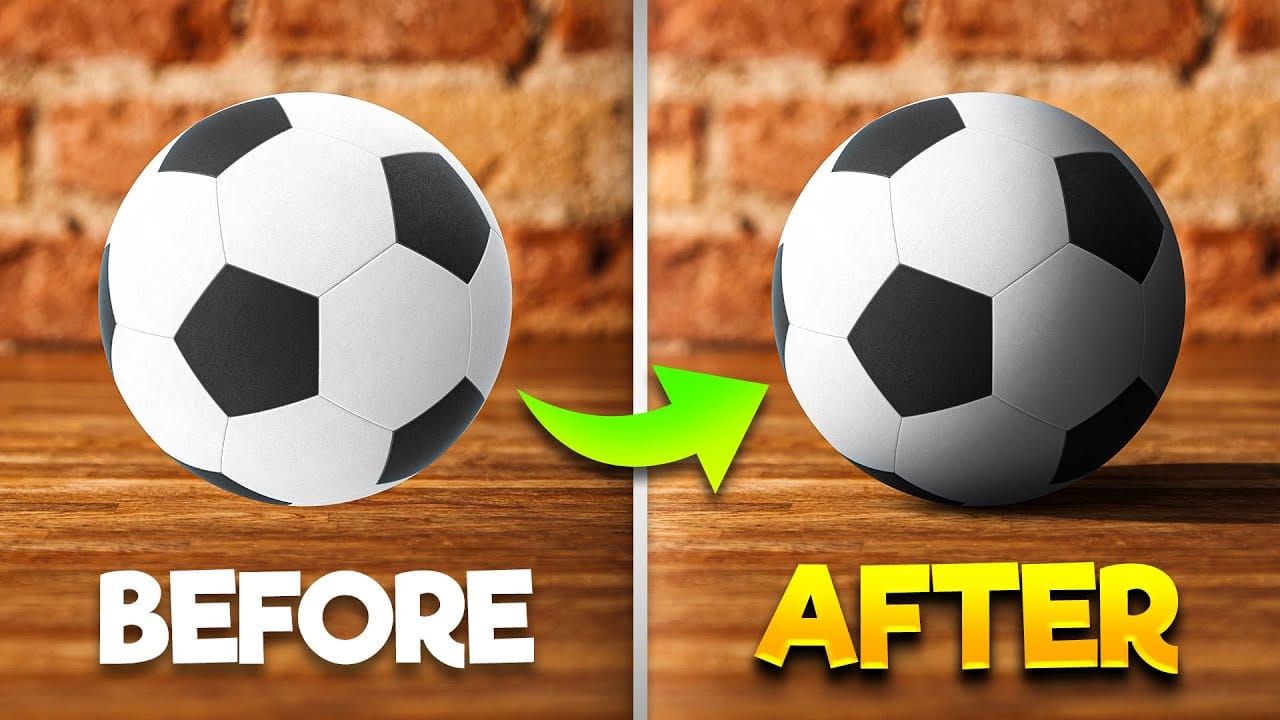
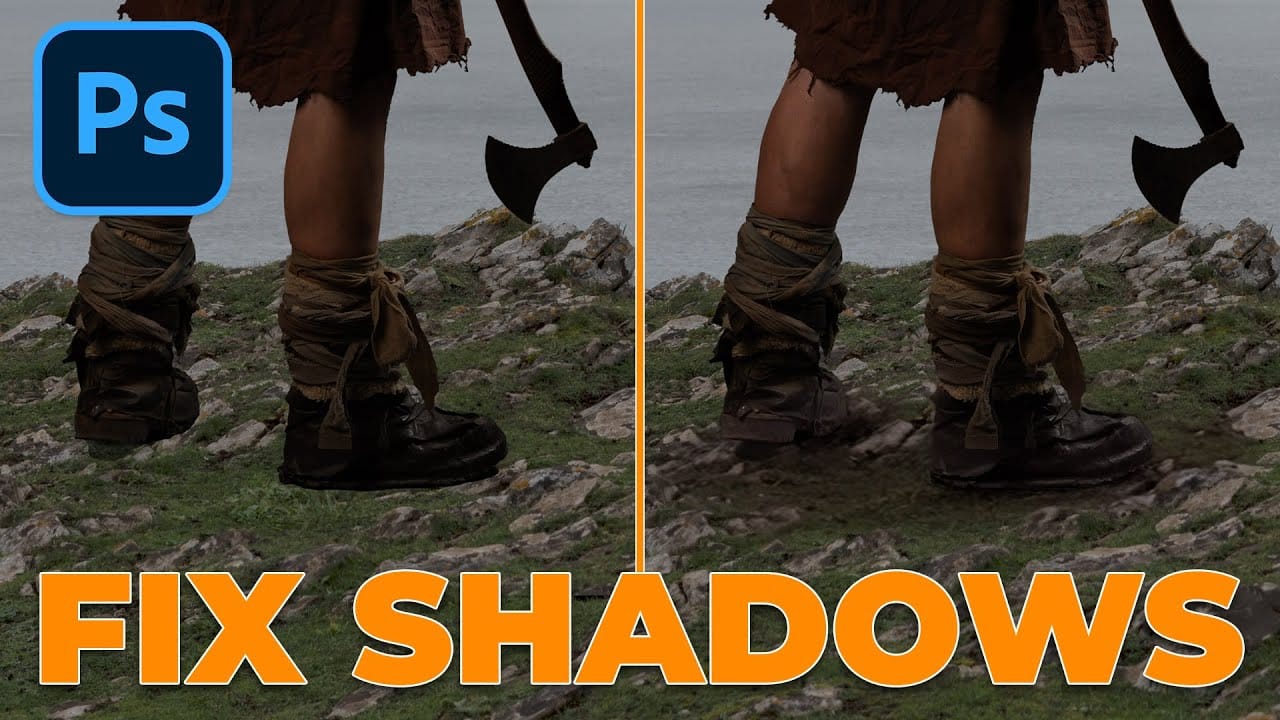
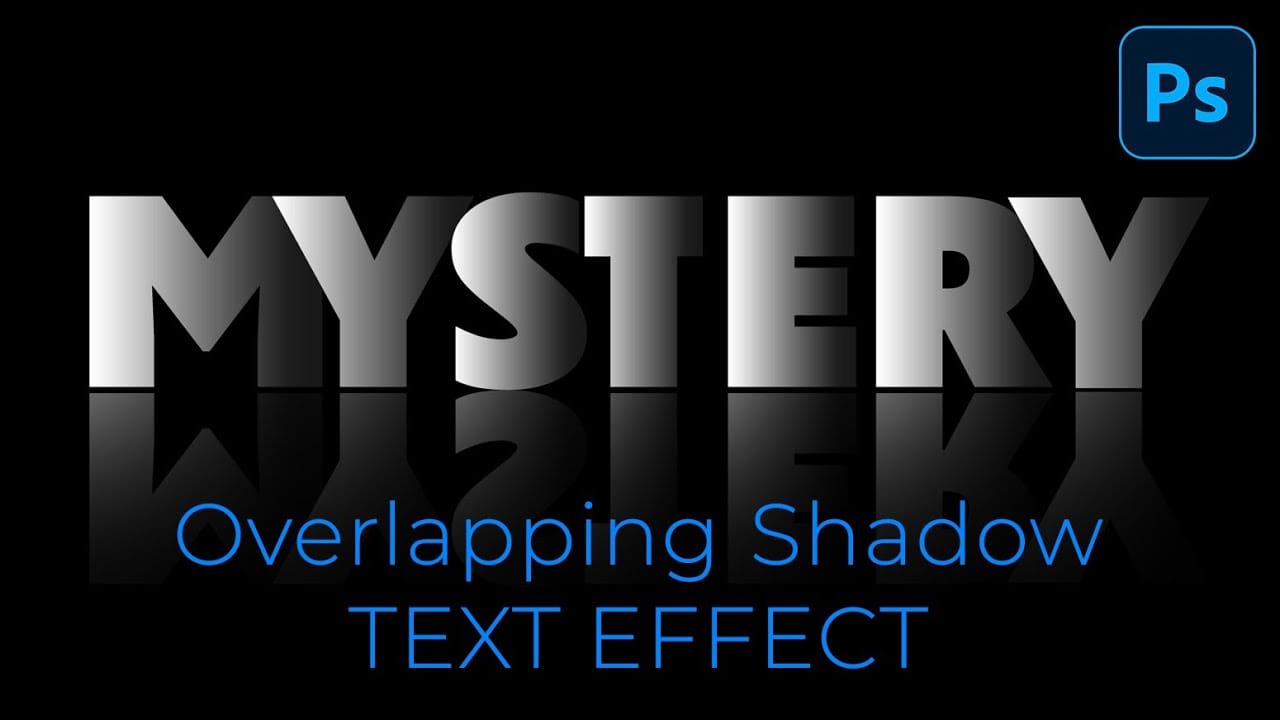
The basic drop shadow effect often looks flat and artificial compared to how shadows actually behave in real environments. Professional designers know that convincing shadows require understanding light direction, surface interaction, and atmospheric perspective.
This technique demonstrates how to create custom shadows that respond naturally to your composition's lighting conditions, giving objects realistic weight and depth that standard layer styles simply cannot achieve.
Watch the Video
Video by PiXimperfect. Any links or downloads mentioned by the creator are available only on YouTube
Practical Tips
Follow these key principles to create shadows that enhance rather than distract from your design:
- Analyze the existing light sources in your image before adding any shadow effects
- Use separate layers for contact shadows and cast shadows to maintain full control
- Adjust shadow opacity and blur based on distance from the object casting the shadow
- Match the shadow's perspective to the surface it falls on rather than using uniform angles
- Consider environmental factors like surface texture and ambient light when refining shadow appearance
Related Articles and Tutorials
Explore more advanced shadow and lighting techniques to enhance your compositions: