How to Create a Daguerreotype Photo Effect in Photoshop

How to Create a Daguerreotype Photo Effect in Photoshop

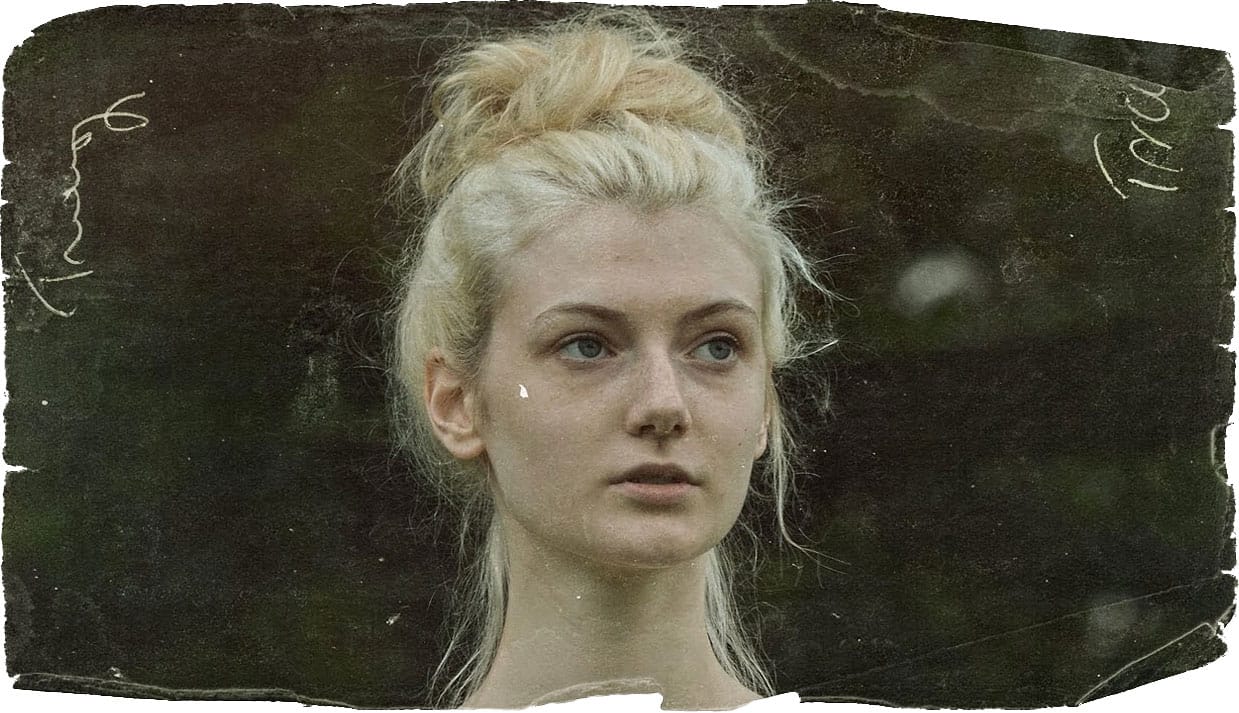
The mirror-like daguerreotypes of the 1840s and 1850s represent photography's earliest commercial success, capturing portraits with an ethereal quality unmatched by modern digital images. These delicate silver-plated photographs developed a distinctive aesthetic through their unique chemistry and fragile surfaces that scratched easily from dust, fingerprints, and handling.

This tutorial demonstrates how to recreate that iconic 19th-century look using modern Photoshop techniques, complete with the characteristic sepia tones, surface scratches, and aged patina that make daguerreotypes so visually compelling.

Watch the Tutorial

Video by Photoshop Arthouse. Any links or downloads mentioned by the creator are available only on YouTube

Understanding Daguerreotype Photography

Daguerreotypes emerged as the first widely adopted photographic process, revolutionizing portraiture in the mid-19th century. The process involved exposing images directly onto highly polished silver-coated copper plates, creating photographs with remarkable detail and a distinctive mirror-like surface. This unique chemistry produced images that seemed to float between positive and negative depending on the viewing angle.

The delicate nature of these silver plates made them extremely susceptible to environmental damage. Even light contact would leave permanent marks, while dust and moisture created the characteristic spots and staining we associate with antique photographs today. The chemical processing also contributed to the warm, sepia-toned coloration that gave daguerreotypes their romantic, nostalgic appeal.

Modern recreations focus on capturing three key visual elements: the warm sepia coloration from the silver chemistry, the surface scratches and damage from handling, and the enhanced contrast that made daguerreotype portraits so striking. These characteristics combine to create photographs that feel both timeless and deeply historical.

Practical Tips for Daguerreotype Effects

  • Convert your image to a Smart Object first to maintain non-destructive editing capabilities and allow texture adjustments later
  • Use Hue/Saturation with Colorize enabled to achieve authentic sepia tones—aim for hue values around 38 with low saturation
  • Apply High Pass sharpening with a 1.5-pixel radius to recreate the enhanced edge detail characteristic of daguerreotypes
  • Layer multiple texture overlays using Soft Light and Screen blend modes to build realistic surface damage
  • Adjust Shadows/Highlights subtly to enhance detail without losing the period-appropriate contrast

Explore more techniques for creating authentic antique photography looks.
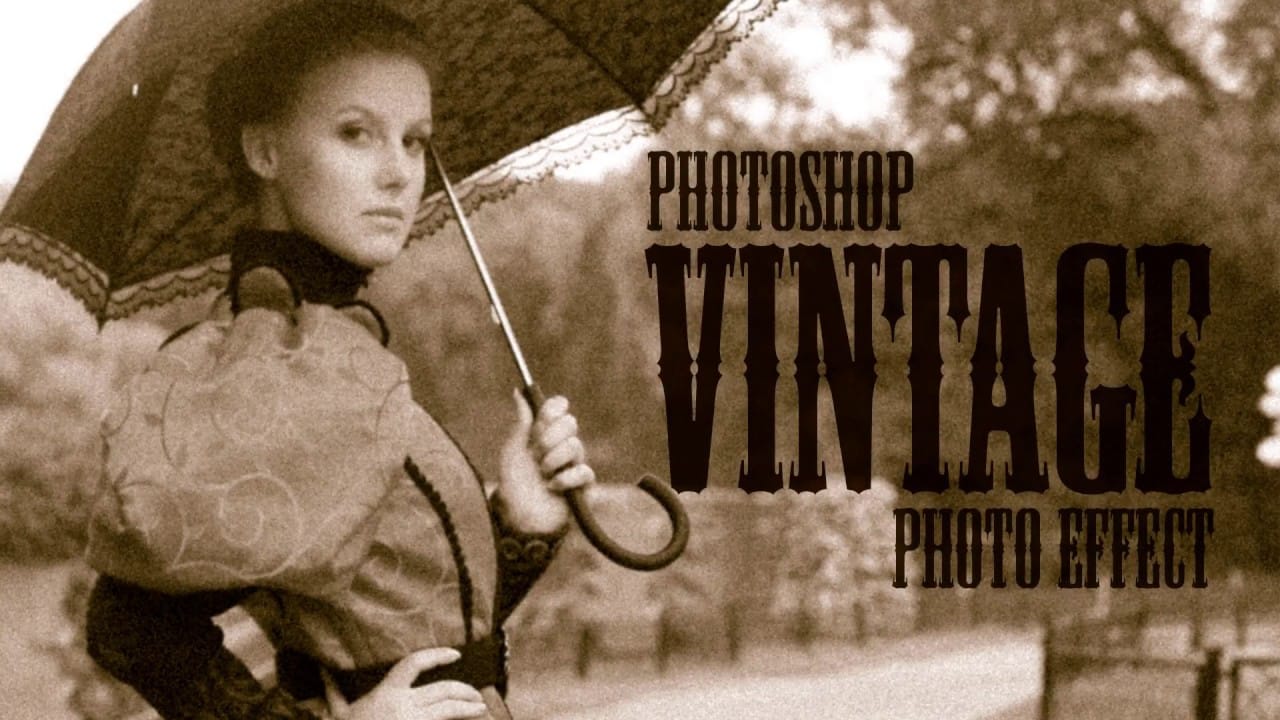
Create a realistic old vintage photo effect in Photoshop
Photographs are timeless. In fact, it's often our old, weathered and faded photographs that we treasure the most. Snapshots from a bygone era fill our hearts with nostalgia and romantic notions of how much simpler life must have been. While today's digital cameras continue to amaze us with their technology, there's still something magical and irreplaceable about old, vintage photographs. And not only do we love to look at them, but we also love to recreate the look of them in programs like Phot
Apply a vintage and gritty old paper effect to your photos in Photoshop
In this tutorial by Jobe from DR Design Resources, readers will learn a quick and easy technique to transform their photos into a vintage-inspired look with an old paper effect in Adobe Photoshop. The process involves using a texture of an old paper and applying it to the desired image. The author demonstrates how to apply this effect on two different images, one with a light background and one with a dark background. This straightforward method allows users to easily achieve a gritty, aged ae
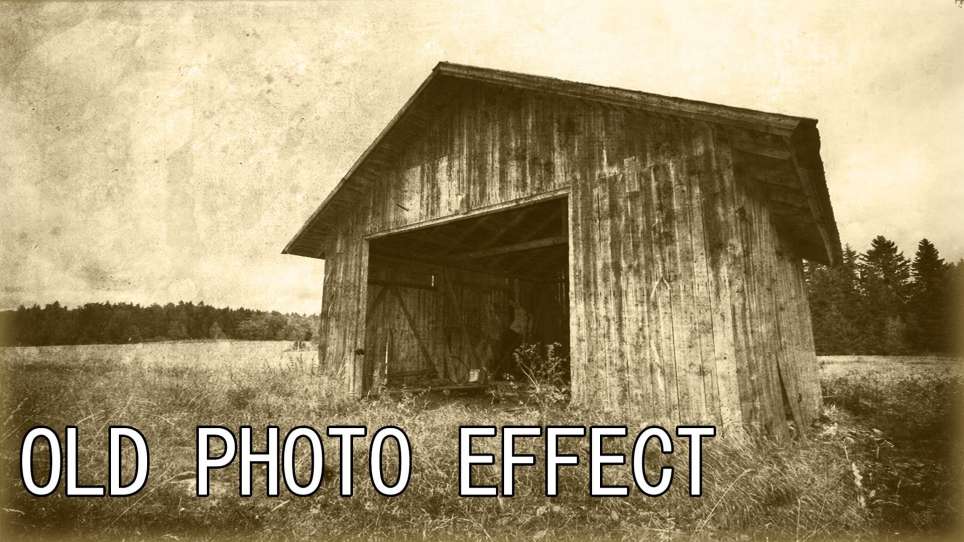
Create an Old Photo Effect in Photoshop
The author, Photoshop Pro Help, provides a tutorial on how to create an old photo effect in Photoshop. They explain that if you have ever admired the style of vintage photos and wanted to give your modern photos a similar look, this tutorial will show you how to apply an old photo style with a torn and damaged brown vintage effect. This can transform your photos to look as if they were taken straight from a history book. The tutorial guides the user through the process of achieving this retro a
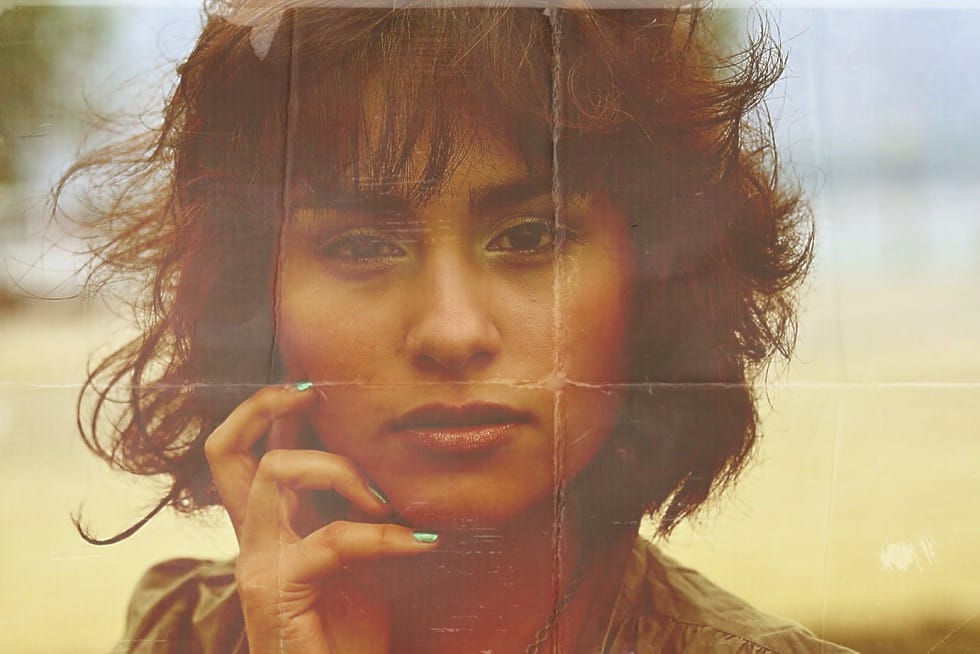
Create a vintage printed photographs with folds and creases in Photoshop
Discover how to create a creased vintage printed photograph in this Photoshop tutorial by Arunz Creation. You'll learn techniques using adjustment layers, gradients, and blending modes to add realistic paper folds and creases to a portrait. These effects contribute to a retro aesthetic, transforming your digital photos into vintage-inspired prints with character and charm. Whether you're aiming for an antique look or simply want to enhance the visual appeal of your portraits, this tutorial prov

Get tutorials & freebies delivered to you.

Subscribe to the Photoshop Roadmap newsletter, a weekly roundup of new tutorials, insights and quality downloads, trusted by 6500+ readers.

You might also like

How to Create Circle Cropped Photos with Transparent Backgrounds in Photoshop

Circular cropping transforms standard photographs into clean, professional profile images perfect for websites, social media, and presentations. The frame tool method creates non-destructive crops with transparent backgrounds that export seamlessly across different platforms. This streamlined workflow eliminates the need for complex selections or masks while maintaining full control over image...

How to Use Generative Upscale to Restore and Enhance Low-Resolution Images in Photoshop

Low-resolution images often limit your creative projects, especially when you need sharp prints or high-quality displays. Photoshop's Generative Upscale feature transforms small, pixelated photos into crisp, detailed images using AI-powered enhancement. This tool offers three distinct AI models, each designed for specific image types—from landscapes and portraits...

How to Use Harmonize to Automatically Match Lighting in Photoshop Composites

Creating seamless composites traditionally requires hours of manual color correction and lighting adjustments. The new Harmonize tool changes this by automatically analyzing your background and matching your subject's lighting, shadows, and color tones with a single click. This AI-powered feature eliminates the need for complex adjustment layers and...

How to Use Adobe Photoshop in ChatGPT for Photo Editing

Adobe Photoshop is now integrated directly into ChatGPT, allowing you to edit photos using simple text descriptions. This new feature lets you enhance images, apply creative effects, and make targeted adjustments without needing a Photoshop subscription. You can describe what you want to change and fine-tune adjustments using familiar Photoshop...

How to Fix Skin Tones in Photoshop - Complete Guide

Skin tones can make or break a portrait, yet color casts and uneven lighting often leave subjects looking unnatural or flat. Whether dealing with mixed lighting conditions, camera white balance issues, or post-processing mishaps, getting skin colors right requires a systematic approach that works consistently across different scenarios. This comprehensive...

You’ve successfully subscribed to Photoshop Roadmap
Welcome back! You’ve successfully signed in.
Great! You’ve successfully signed up.
Success! Your email is updated.
Your link has expired
Success! Check your email for magic link to sign-in.