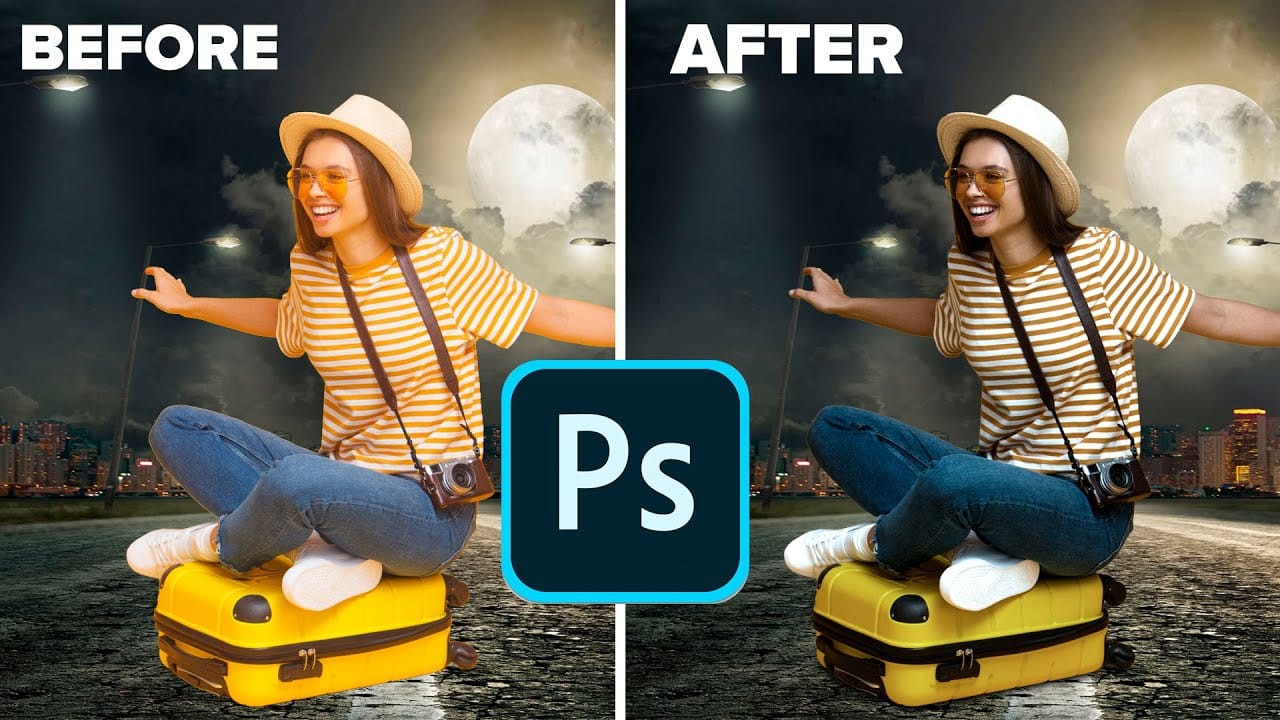
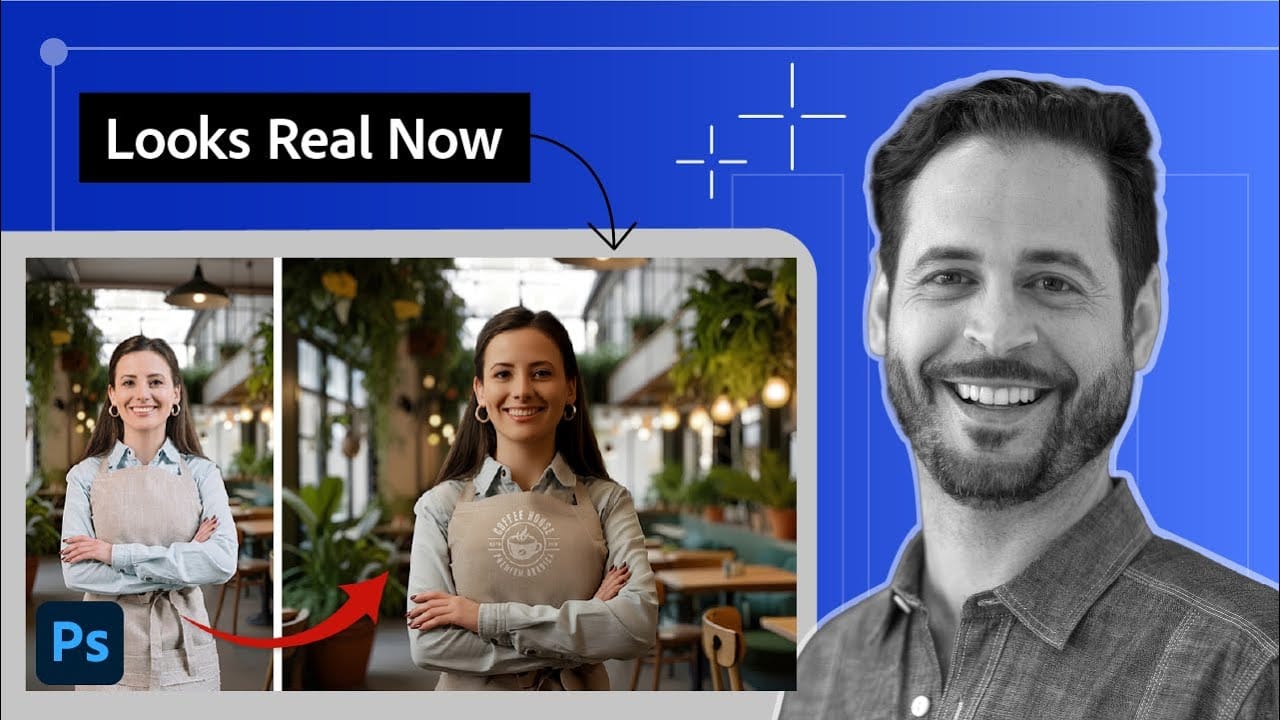
How to Change Backgrounds and Match Lighting in Photoshop

How to Change Backgrounds and Match Lighting in Photoshop

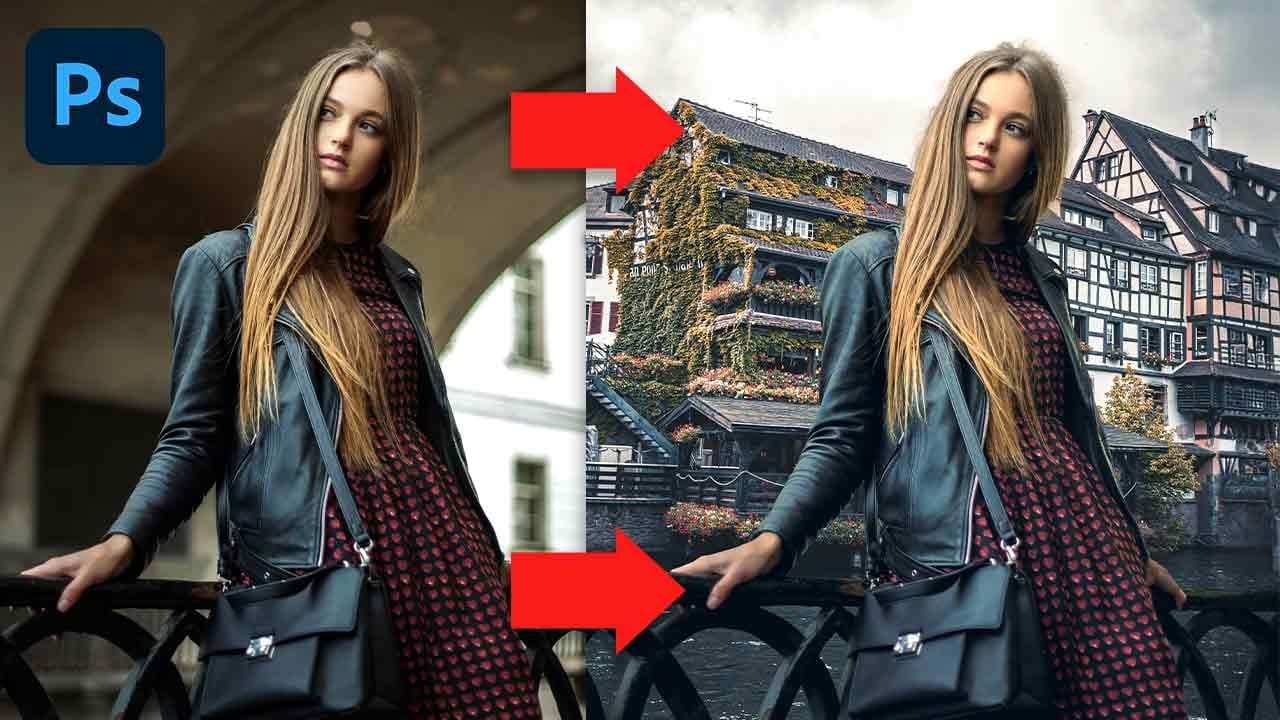
Creating seamless background replacements requires more than just cutting out your subject. The real challenge lies in making the new composition look natural through proper lighting, color matching, and depth of field consistency.

Modern Photoshop tools have simplified this process significantly, allowing you to achieve professional results with automated background removal and smart masking techniques that handle even complex details like hair.

Watch the Video

Video by PiXimperfect. Any links or downloads mentioned by the creator are available only on YouTube

Practical Tips

These essential techniques will help you create convincing background replacements that look naturally integrated.

  • Use Remove Background instead of Select Subject to automatically create a mask and save time
  • Match horizon lines by creating a guide line and positioning both images to align their perspective
  • Create clipping masks when painting hair corrections to limit brush strokes only to the subject
  • Apply tilt-shift blur with matching noise levels to simulate natural depth of field in backgrounds
  • Check light direction consistency and flip layers horizontally if the lighting doesn't match

Explore more advanced techniques for color matching and background manipulation in these tutorials.
How to Use Photoshop's Match Color Tool for Consistent Image Tones
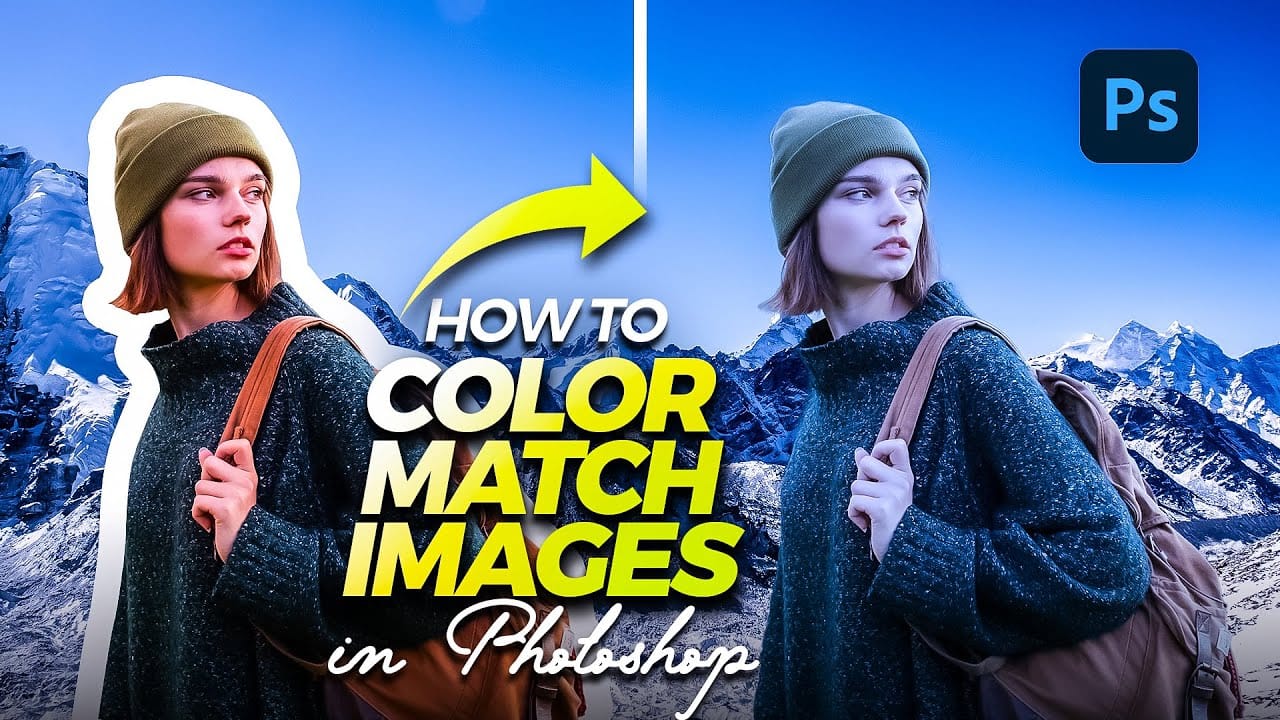
Color consistency between images can make or break a professional composition. When combining photos from different sources, lighting conditions and camera settings create jarring color mismatches that immediately reveal the edit. Photoshop's Match Color tool provides a direct solution, automatically analyzing and transferring the color characteristics from one image to another with precision control. Watch the Tutorial Essential Match Color Tips * Minimize your reference image — Resize t
Quick and Easy Method for Color Matching Images in Photoshop
Achieving visual harmony in composite images is a cornerstone of professional photo editing. When combining elements from different sources, discrepancies in color and lighting can immediately break the illusion of a unified scene, making the final image appear unnatural or poorly constructed. This tutorial demonstrates a straightforward yet powerful method within Photoshop to perfectly align the color profiles of disparate images. Viewers will learn how to leverage Photoshop's built-in tools t
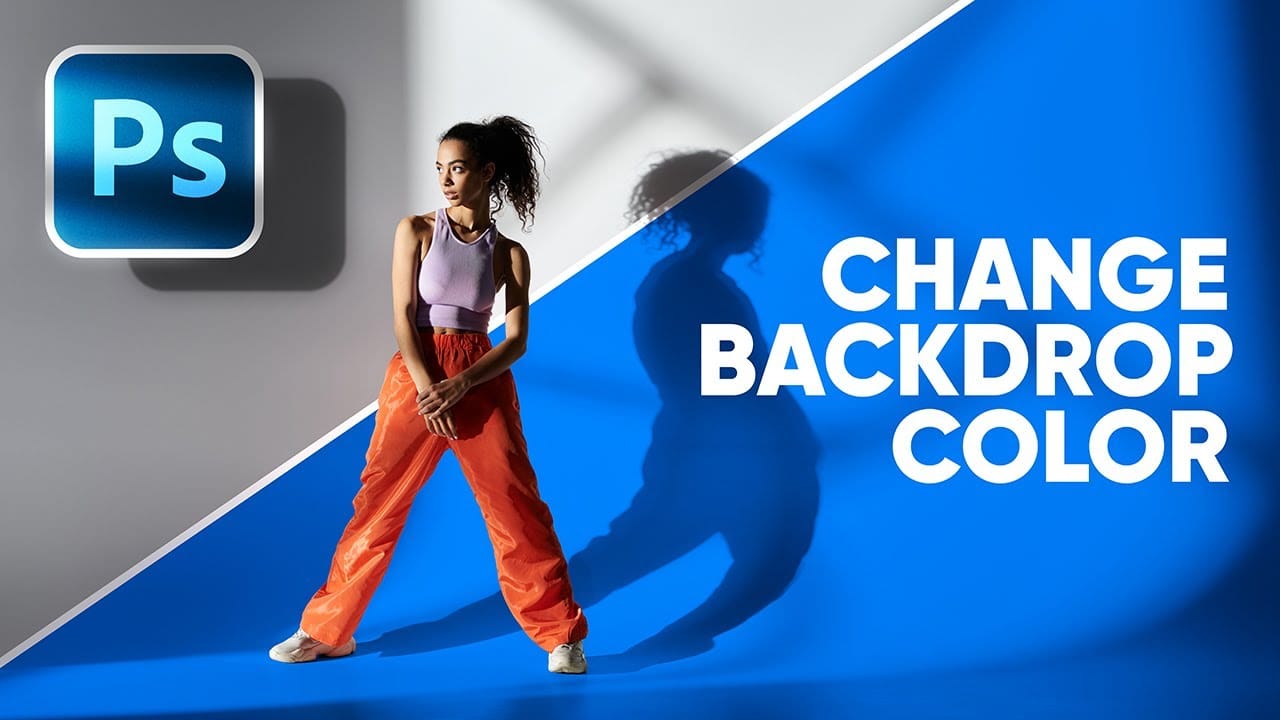
2-Min Photoshop: Right Way to Change Backdrop Color
Changing the background color of an image is a common task in photo editing, whether for creative purposes, branding, or simply to improve visual appeal. However, the approach to achieving a seamless background change often depends on the original backdrop's characteristics, presenting unique challenges for different scenarios. This tutorial explores two distinct and effective methods for altering background colors in Photoshop, tailored to specific starting conditions: one for white or light g
Artistic Photoshop Actions to Make Photography Fun
Photoshop actions are a simple way to speed up editing and give your photos a consistent look without spending hours on adjustments. From subtle color shifts to bold artistic transforms, actions can help you work faster and keep your style consistent across different projects. They’re useful for anyone who
How to Match Color in Photoshop for Beginners
Compositing images often requires precise color matching. When combining elements from different sources, slight variations in tone can disrupt the visual harmony, making the final image appear unnatural. Achieving a cohesive look is crucial for professional results. This tutorial offers a straightforward method to blend disparate image elements seamlessly. The video demonstrates how to use Photoshop's built-in tools, specifically the Curves adjustment layer and Camera Raw, to unify the color p
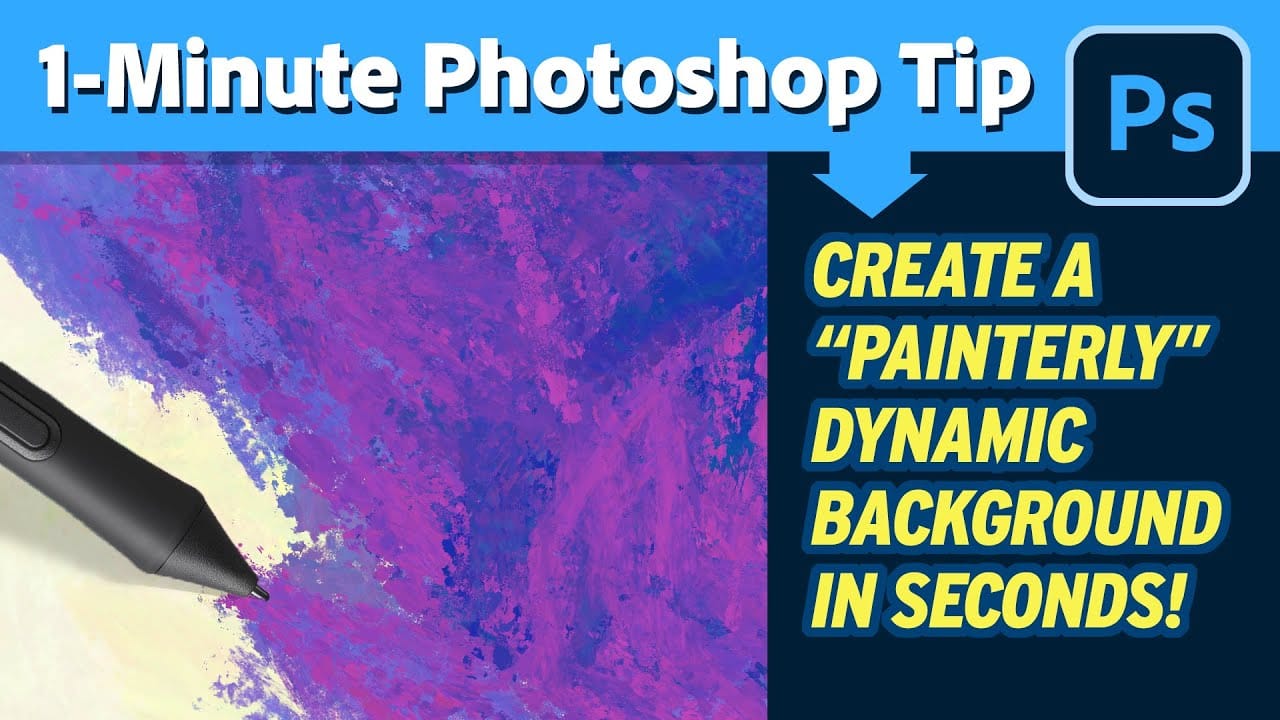
Create painterly backgrounds in Photoshop FAST!
Painting in Photoshop doesn't have to be flat and lifeless. In this quick 1-minute video tutorial, Kyle T Webster shows you how to create vibrant painterly backgrounds with ease. By taking advantage of color dynamics, you can add depth and life to your backgrounds, transforming them from flat to fabulous in no time. Kyle demonstrates how simple adjustments and techniques can significantly enhance the overall look and feel of your digital paintings. Whether you're a beginner or an experienced ar
How to perfectly match colors in Photoshop when combining photos
In this insightful tutorial, Colin Smith from Photoshop Cafe teaches you how to seamlessly match colors when combining multiple images in Photoshop. This process is crucial for ensuring that different layers or photographs blend together naturally and look cohesive. Colin demonstrates how to use the Match Color feature to align the tones and hues of different images. He also covers techniques for creating grounding shadows, which help to anchor the combined elements and enhance the overall inte
How to Remove Backgrounds in Photoshop: 5 Essential Tools
Background removal can make or break your image editing workflow. The right tool depends on your specific image: solid backgrounds need different approaches than complex hair details or high-contrast scenes. This tutorial covers five powerful Photoshop tools that handle different background removal challenges, from simple graphics to intricate details. Watch the Tutorial Practical Tips for Background Removal * Use Blend If for solid colored backgrounds by accessing layer styles and adjust
How to Use Harmonize to Automatically Match Lighting in Photoshop Composites
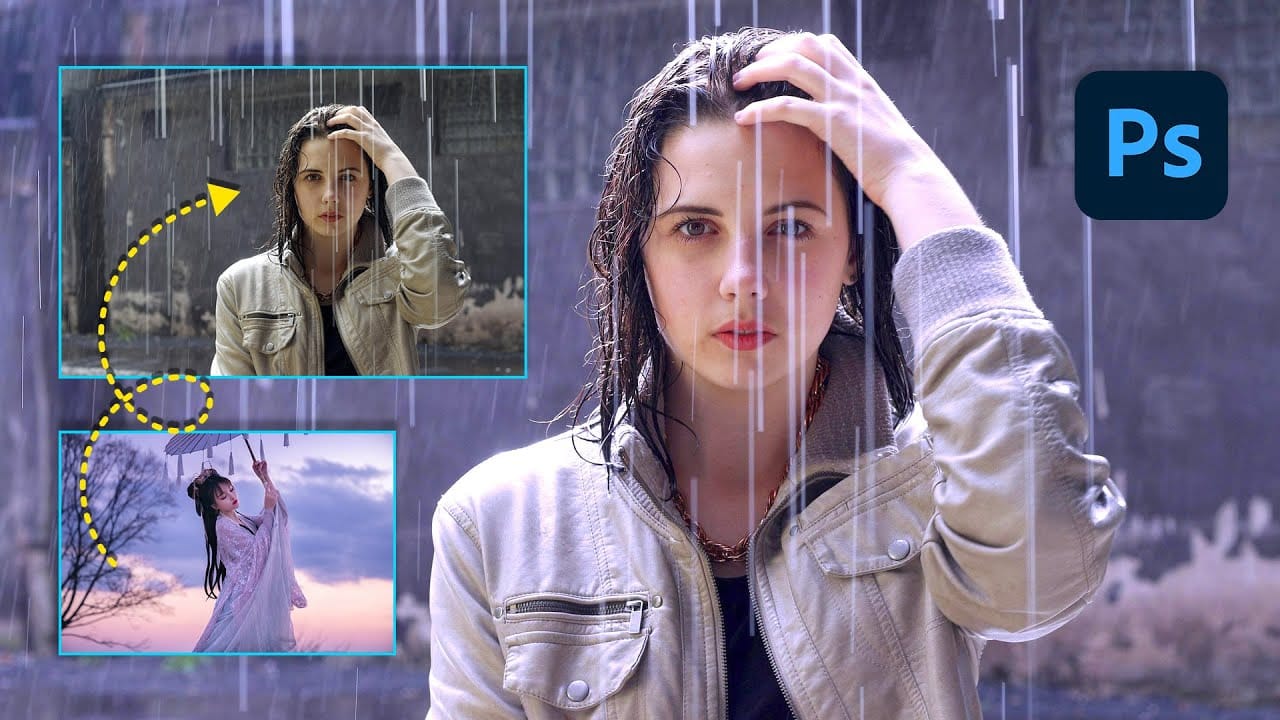
Creating seamless composites traditionally requires hours of manual color correction and lighting adjustments. The new Harmonize tool changes this by automatically analyzing your background and matching your subject's lighting, shadows, and color tones with a single click. This AI-powered feature eliminates the need for complex adjustment layers and advanced color theory knowledge, making professional-quality compositing accessible to editors at any skill level. Watch the Video Practical Ti
Did you know Photoshop has new Quick Actions?
Discover how to speed up your workflow with Photoshop's new Quick Actions, presented by Colin Smith from Photoshop Cafe. This tutorial reveals the ease and efficiency of using Quick Actions to perform common tasks with just one click. Colin walks you through locating these Quick Actions and demonstrates how to use them to blur backgrounds, apply duotones, remove backgrounds, and more. While some features, like the Blur Background action, might not always produce perfect results, Colin shares a

Get tutorials & freebies delivered to you.

Subscribe to the Photoshop Roadmap newsletter, a weekly roundup of new tutorials, insights and quality downloads, trusted by 6500+ readers.

You might also like

How to Wrap Designs Around Complex Objects Using Displacement Maps in Photoshop

Professional mockups require more than simply placing a design onto an object. Complex surfaces like crushed aluminum cans demand advanced techniques to achieve realistic wrapping that follows every contour and deformation. This process combines displacement mapping, smart objects, and blending modes to create reusable templates that automatically conform any design...

How to Fix Three Confusing Default Settings in Photoshop

Sometimes Photoshop's default settings can make beginners think their software or hardware is broken. Images that fly around uncontrollably when panning, scroll bars appearing on full-size images, and zoom tools that seem to have a mind of their own are all caused by simple preference settings that can...

How to Create Better Shadows Than Drop Shadow in Photoshop

The basic drop shadow effect often looks flat and artificial compared to how shadows actually behave in real environments. Professional designers know that convincing shadows require understanding light direction, surface interaction, and atmospheric perspective. This technique demonstrates how to create custom shadows that respond naturally to your composition's...

How to Customize Your Photoshop Toolbar and Find Hidden Tools

A cluttered toolbar can slow down your workflow when you can't find the tools you need. Meanwhile, dozens of useful tools remain hidden in groups or completely out of sight. Learning to customize your toolbar lets you organize tools according to your actual workflow, remove tools you never...

How to Create a Colorful Aura Effect for Portraits in Photoshop

Portrait photography becomes truly captivating when enhanced with atmospheric effects that draw the viewer's eye. The colorful aura effect transforms ordinary portraits into striking visual statements by surrounding the subject with ethereal, glowing light that feels both magical and professional. This technique works best with portraits shot against...

How to Blur Backgrounds in Photoshop with Precision and Speed

Creating professional-looking background blur can transform ordinary photos into stunning portraits with proper depth of field. The key lies in combining the right selection techniques with blur filters to achieve natural-looking results that rival expensive camera lenses. This approach focuses on precision and speed, ensuring your subject remains sharp while...

You’ve successfully subscribed to Photoshop Roadmap
Welcome back! You’ve successfully signed in.
Great! You’ve successfully signed up.
Success! Your email is updated.
Your link has expired
Success! Check your email for magic link to sign-in.