Create a Colorful Xerox Photocopy Effect in Photoshop

Create a Colorful Xerox Photocopy Effect in Photoshop

The distinctive look of vintage photocopying machines creates a unique aesthetic that blends sharp contrasts with colorful accents. This retro effect transforms ordinary photographs into stylized artwork reminiscent of 1980s design and underground art movements.

This tutorial demonstrates how to recreate that classic xerox appearance using Photoshop's adjustment layers, filters, and blending techniques to achieve authentic-looking photocopy distortion and selective colorization.

Watch the Tutorial

Video by P A N T E R. Any links or downloads mentioned by the creator are available only on YouTube

Understanding the Xerox Aesthetic

The photocopy effect emerged from the limitations and characteristics of early copying machines. These devices produced images with high contrast, textural grain, and occasional color shifts that gave photographs an unmistakably mechanical quality. Artists and designers began embracing these "flaws" as creative elements.

The key visual elements include extreme shadow and highlight adjustments that flatten the tonal range, creating stark black and white areas. The reticulation filter adds the characteristic dotted texture that mimics the halftone patterns of reproduction processes. This combination produces the signature look of documents that have been photocopied multiple times.

Modern recreations focus on three main components: aggressive tonal adjustments, textural overlays, and selective color application. The threshold adjustment plays a crucial role by eliminating midtones and creating the binary contrast typical of photocopying technology.

Essential Tips for Xerox Effects

  • Convert your image to a Smart Object before applying filters to maintain editing flexibility and image quality
  • Use Shadows/Highlights adjustments with high shadow values (around 100) to flatten the tonal range and create the characteristic photocopy contrast
  • Apply the Median noise filter at low settings (1-2 pixels) to reduce fine detail and simulate copy degradation
  • Set the Reticulation filter with high density (20-22) and zero foreground/background levels to create authentic halftone patterns
  • Use Threshold adjustments combined with reduced layer opacity to control the balance between stark contrast and image detail

More Tutorials About Photoshop Effects

Explore additional techniques for creating distinctive visual effects and color treatments in Photoshop.
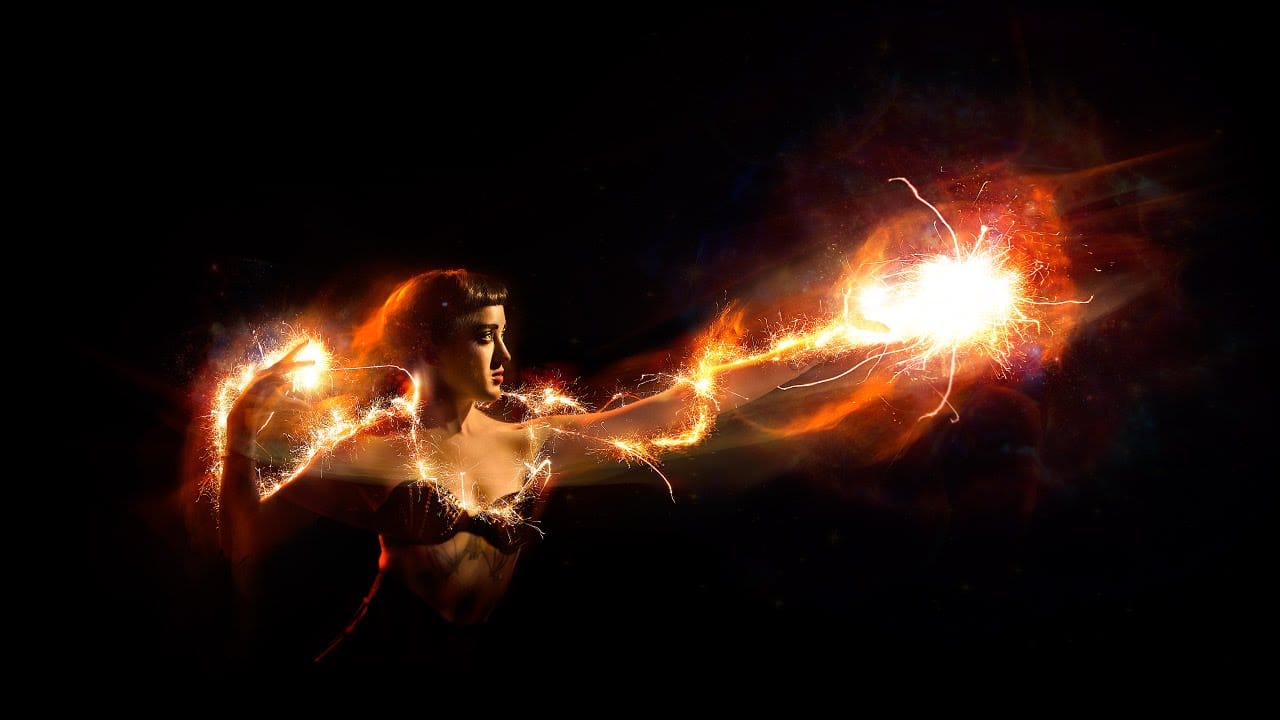

How to Add Special Effects in Photoshop
This video tutorial by PHLEARN demonstrates how to add special effects in Photoshop using photos from the same photoshoot. Aaron begins with a photo taken for a Fourth of July sale, featuring sparklers around the subject. The tutorial covers the use of blending modes and adjustment layers to create visually striking effects. Throughout the video, viewers are guided on how to group photos, change blending modes, use the move tool for positioning, and apply layer masks to hide unwanted areas. Add
How to Apply Graphics and Change Colors in Photoshop
Integrating graphics and adjusting colors are fundamental skills in Photoshop, enabling designers and artists to transform disparate elements into cohesive visual narratives. From compositing a logo onto a product image to blending text into a scene, mastering these techniques is crucial for achieving professional results. This video demonstrates practical methods for seamlessly applying graphics from one image to another, extracting specific elements like text, and efficiently changing their c
Add creative lights and colors to your image in Photoshop
You're about to learn how to transform your images with creative lights and colors in Photoshop. This tutorial will guide you through the process of adding vibrant hues and eye-catching effects to your photographs. First, you'll explore the use of gradients and brushes to enhance your image. These tools will allow you to layer different colors and luminous accents, creating a visually striking result. With a few simple steps, you'll be able to turn your ordinary image into an impressive work of
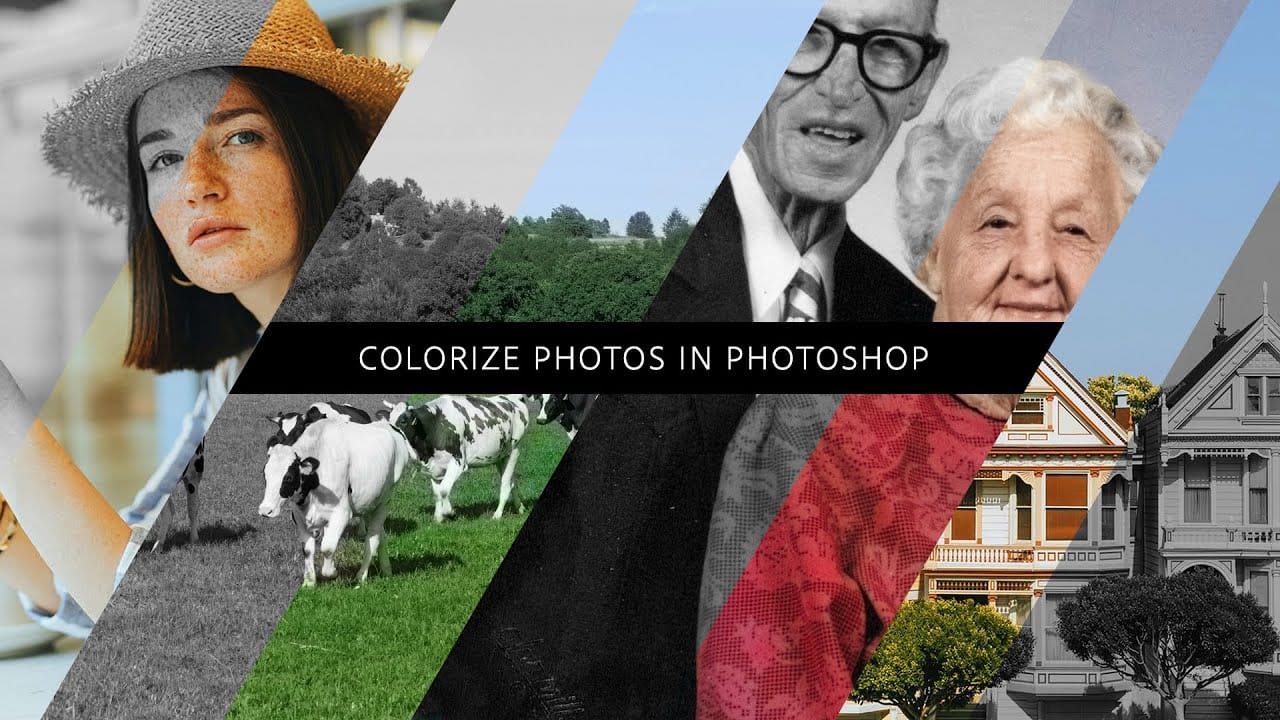
How to colorize photos in Photoshop
In this episode, Adobe Evangelist Paul Trani demonstrates how to instantly colorize photos in Photoshop using the new Neural Filters. This feature allows you to bring new life to black-and-white images, from landscapes to your old family photos, with just a few clicks. Paul walks you through the process of accessing and applying the Neural Filters to your photos. You'll learn how these advanced filters use artificial intelligence to analyze your image and apply realistic colorization based on t

Get tutorials & freebies delivered to you.

Subscribe to the Photoshop Roadmap newsletter, a weekly roundup of new tutorials, insights and quality downloads, trusted by 6500+ readers.

You might also like

How to Create Circle Cropped Photos with Transparent Backgrounds in Photoshop

Circular cropping transforms standard photographs into clean, professional profile images perfect for websites, social media, and presentations. The frame tool method creates non-destructive crops with transparent backgrounds that export seamlessly across different platforms. This streamlined workflow eliminates the need for complex selections or masks while maintaining full control over image...

How to Use Generative Upscale to Restore and Enhance Low-Resolution Images in Photoshop

Low-resolution images often limit your creative projects, especially when you need sharp prints or high-quality displays. Photoshop's Generative Upscale feature transforms small, pixelated photos into crisp, detailed images using AI-powered enhancement. This tool offers three distinct AI models, each designed for specific image types—from landscapes and portraits...

How to Use Harmonize to Automatically Match Lighting in Photoshop Composites

Creating seamless composites traditionally requires hours of manual color correction and lighting adjustments. The new Harmonize tool changes this by automatically analyzing your background and matching your subject's lighting, shadows, and color tones with a single click. This AI-powered feature eliminates the need for complex adjustment layers and...

How to Use Adobe Photoshop in ChatGPT for Photo Editing

Adobe Photoshop is now integrated directly into ChatGPT, allowing you to edit photos using simple text descriptions. This new feature lets you enhance images, apply creative effects, and make targeted adjustments without needing a Photoshop subscription. You can describe what you want to change and fine-tune adjustments using familiar Photoshop...

How to Fix Skin Tones in Photoshop - Complete Guide

Skin tones can make or break a portrait, yet color casts and uneven lighting often leave subjects looking unnatural or flat. Whether dealing with mixed lighting conditions, camera white balance issues, or post-processing mishaps, getting skin colors right requires a systematic approach that works consistently across different scenarios. This comprehensive...

You’ve successfully subscribed to Photoshop Roadmap
Welcome back! You’ve successfully signed in.
Great! You’ve successfully signed up.
Success! Your email is updated.
Your link has expired
Success! Check your email for magic link to sign-in.