Speed painting isn't just about working faster—it's about eliminating friction from your creative process. These seven techniques help you get ideas onto canvas quickly without getting bogged down in unnecessary decisions or premature details.
Whether you're exploring concepts for professional work or personal projects, these methods will help you maintain creative momentum while producing finished pieces that effectively communicate your vision.
Watch the Video
Video by Imad Awan. Any links or downloads mentioned by the creator are available only on YouTube
Practical Tips
These key techniques will transform your speed painting workflow:
- Pre-decide major elements like character pose, camera angle, and lighting scenario before starting to paint
- Start with low resolution canvases and chunky shapes to prevent getting lost in premature details
- Embrace messy beginnings by focusing on composition and values before refining any individual elements
- Group similar tasks together, like sketching all compositions first, then moving to color phases
- Set specific time deadlines for each painting stage to maintain focus and prevent over-polishing
Related Articles and Tutorials
Explore more techniques to enhance your digital painting workflow and efficiency.
The Underpainting Technique in Adobe Photoshop
In this presentation, you will explore an oil painting technique that has stood the test of time, used by Old Masters for centuries. This method begins with a basic CPA underpainting, which serves as a foundation for the artwork. Following this, layers of color are added on top to create
 Imad Awan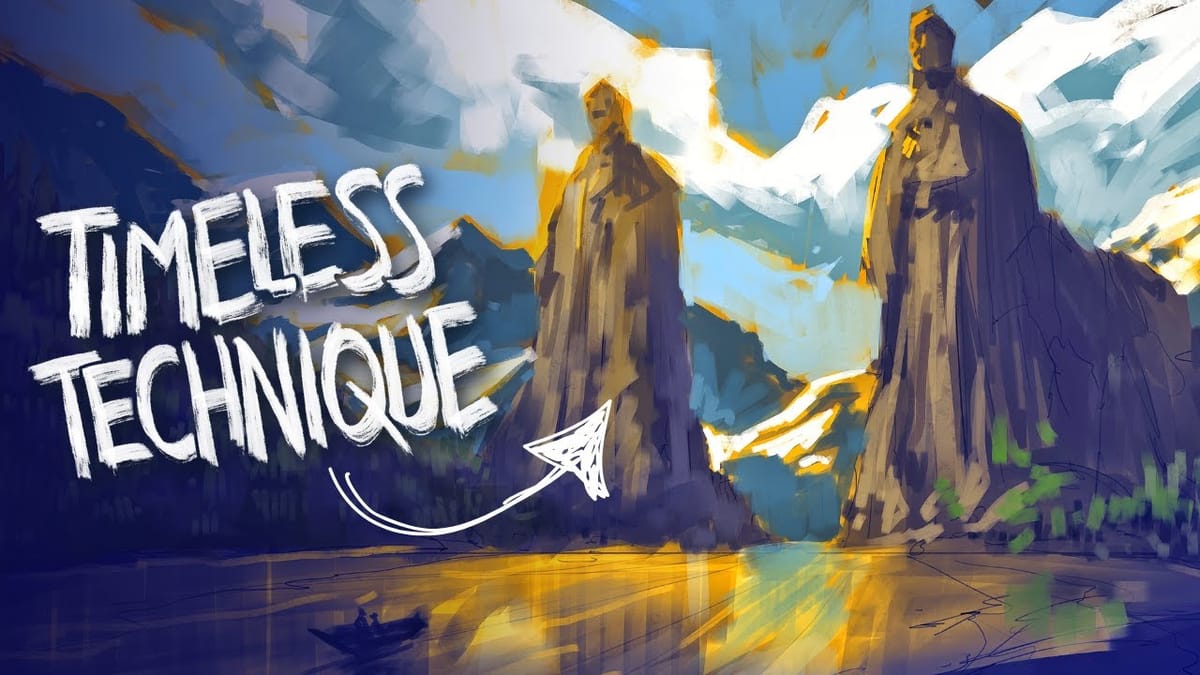
Paint Complex Scenes in Minutes Using Photoshop Painting Techniques
Creating complex cityscapes in just 30 minutes is entirely possible with the right Photoshop painting techniques. This presentation outlines a method to simplify imagery and effectively communicate ideas using minimal brushwork. By focusing on basic shapes like rectangles, triangles, and domes, you can build a recognizable silhouette of a city.
 Imad Awan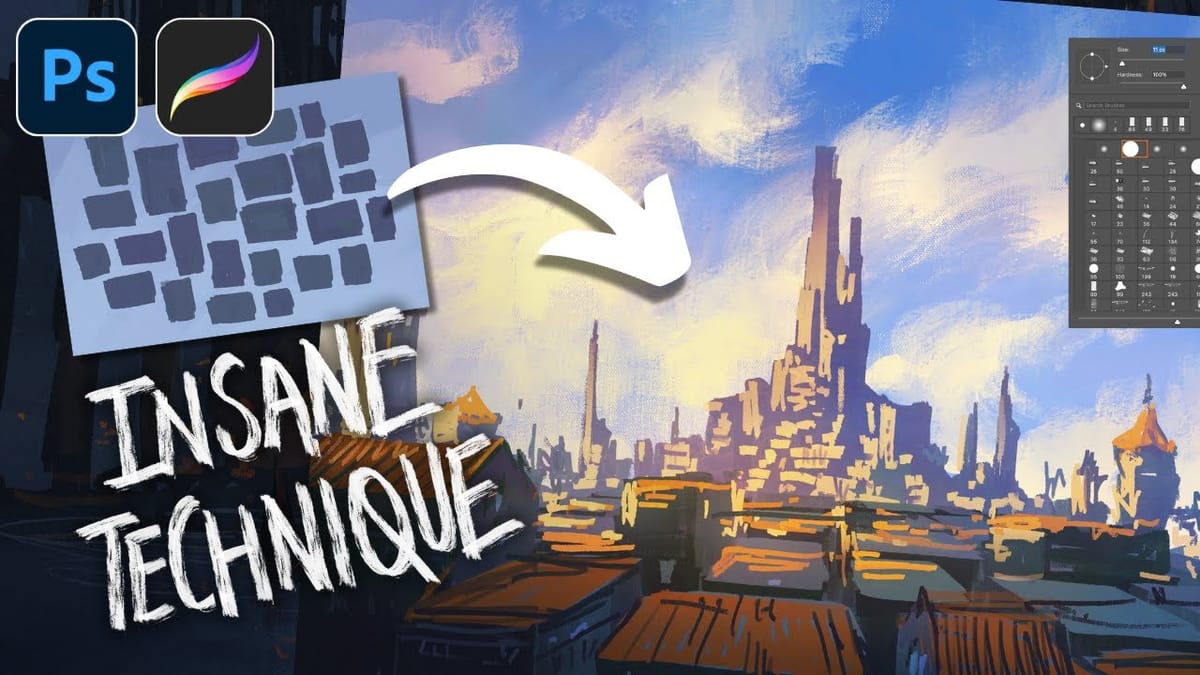
Transform Photos into Abstract Expressionist Portraits in Photoshop
Abstract expressionism transforms raw emotion into bold visual statements through powerful brushstrokes, dramatic textures, and expressive color palettes. This painting movement emphasizes spontaneity and artistic freedom over realistic representation. This technique converts ordinary portraits into dynamic abstract expressionist artworks by combining multiple texture layers with strategic masking. The process creates
 Blue Lightning TV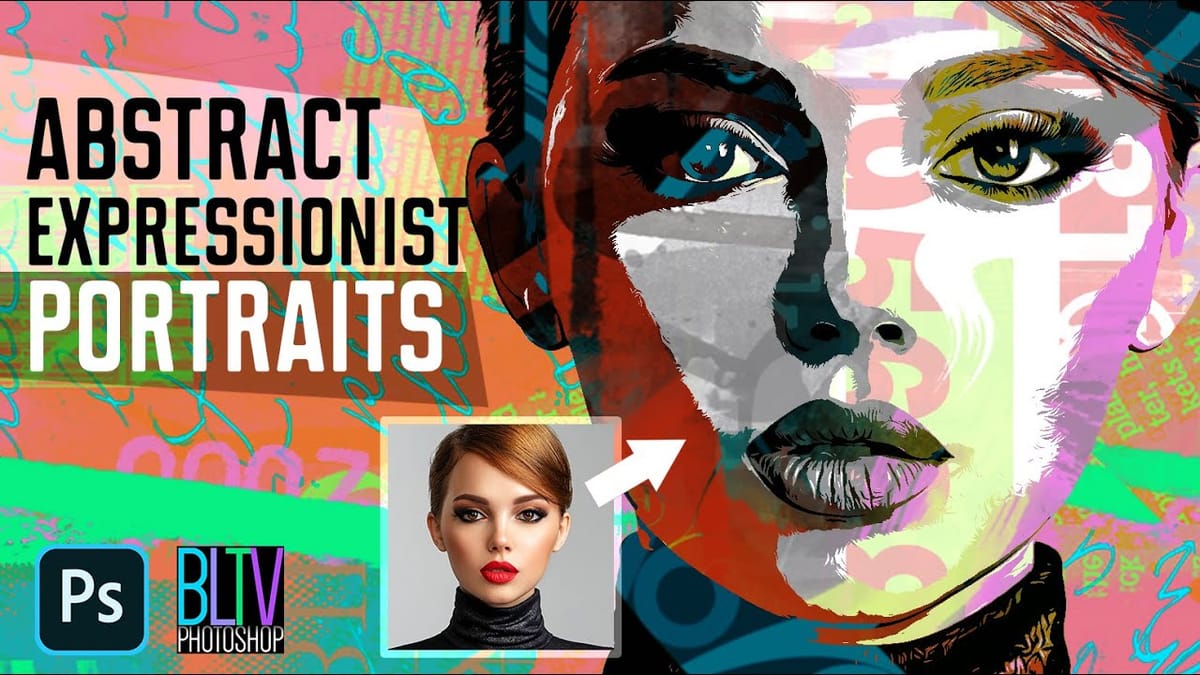
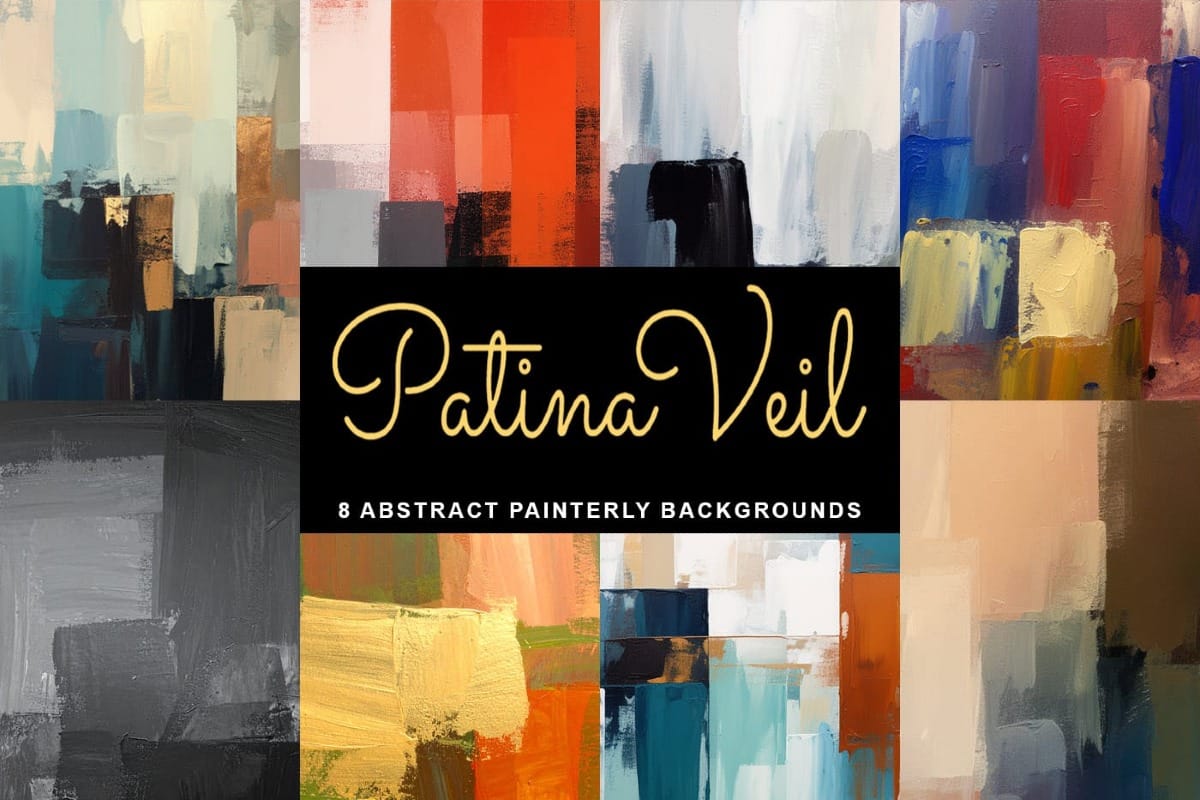
Patina Veil – 8 Free Artistic Abstract Painted Backgrounds
Patina Veil – 8 Free Artistic Backgrounds brings a rich, aged look to your creative work with soft stains, worn surfaces, and organic texture. This free pack gives you ready-to-use background images that instantly add depth and character to any design. Each texture feels natural and imperfect in the best way,
 Creative Closeup