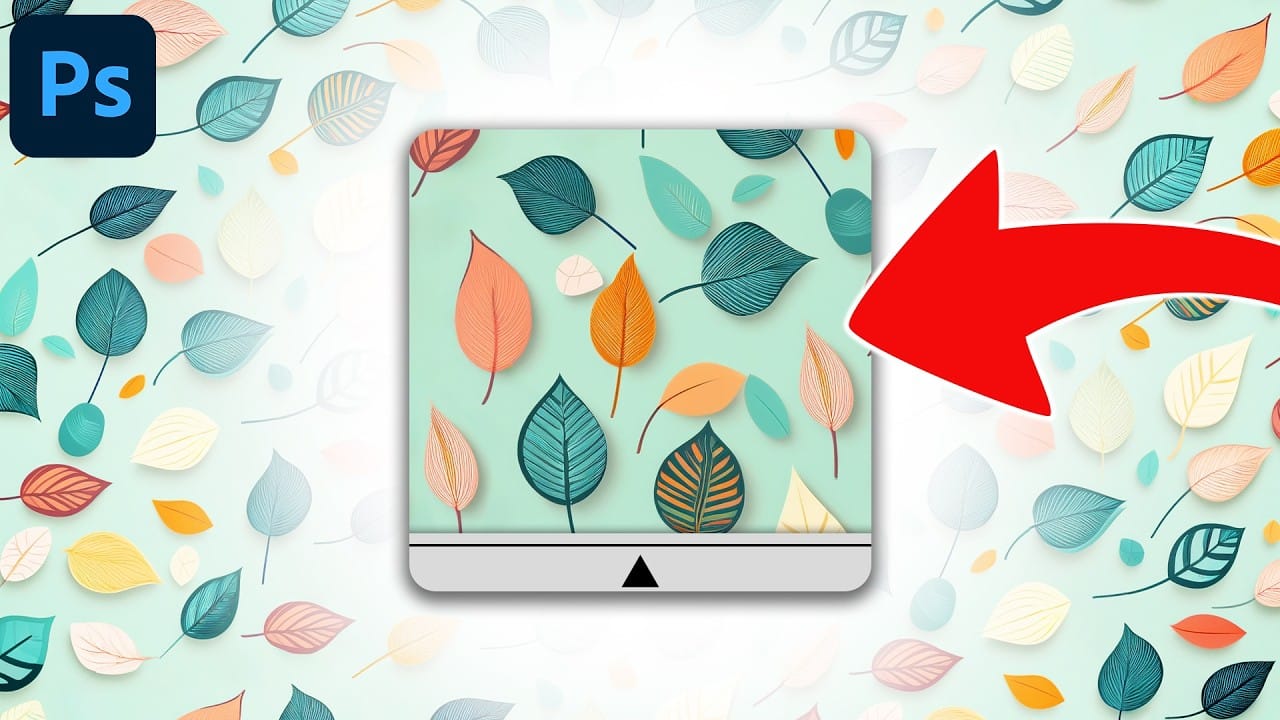
3 Powerful Techniques to Create Seamless Patterns in Photoshop

3 Powerful Techniques to Create Seamless Patterns in Photoshop

Seamless patterns are a fundamental element in graphic design, essential for creating engaging backgrounds, unique textures, and cohesive visual branding. Crafting patterns that repeat flawlessly, without visible edges or disruptions, can transform your design projects from good to exceptional. This capability proves invaluable for everything from digital art to professional composites, ensuring visual continuity and aesthetic appeal.

This tutorial offers a comprehensive guide to producing seamless patterns in Photoshop. It covers techniques ranging from foundational principles to advanced methods, providing you with the skills to tackle various challenges and elevate the quality of your work.

Watch the Full Tutorial

Video by Photoshop Training Channel. Any links or downloads mentioned by the creator are available only on YouTube

Achieving Perfect Repetition in Photoshop

Creating seamless patterns in Photoshop is a nuanced skill that blends technical proficiency with artistic vision. The goal is to produce a repeating unit, or "tile," that visually merges with identical copies of itself on all sides, resulting in an unbroken, continuous design. This is crucial for applications ranging from subtle background textures to large-scale print graphics.

The process often involves identifying and correcting visible seams, which can be accomplished using tools such as the Offset filter, Generative Fill, or the Remove Tool. Maintaining consistent lighting and color across the pattern boundaries is also key. Adjustment layers like Levels, Curves, and Hue/Saturation help harmonize visual elements, ensuring the final pattern feels unified and natural, no matter its scale or complexity.

Practical Tips for Seamless Pattern Creation

  • Actively use Pattern Preview to visualize real-time tiling and identify potential seams early in the process.
  • Apply the Offset filter to strategically move seams to the center of your canvas, making them more accessible for precise corrections.
  • Leverage Generative Fill for complex textures or the Remove Tool for simpler areas to efficiently eliminate visible seams.
  • Standardize brightness and color using Levels, Curves, and Hue/Saturation adjustment layers to ensure visual uniformity across the pattern.
  • Eliminate unique or distracting elements within the pattern repeat to prevent obvious visual anchors that reveal repetition.

More Tutorials about Seamless Pattern Design

Explore these additional resources to deepen your understanding of creating and utilizing seamless patterns in Photoshop.
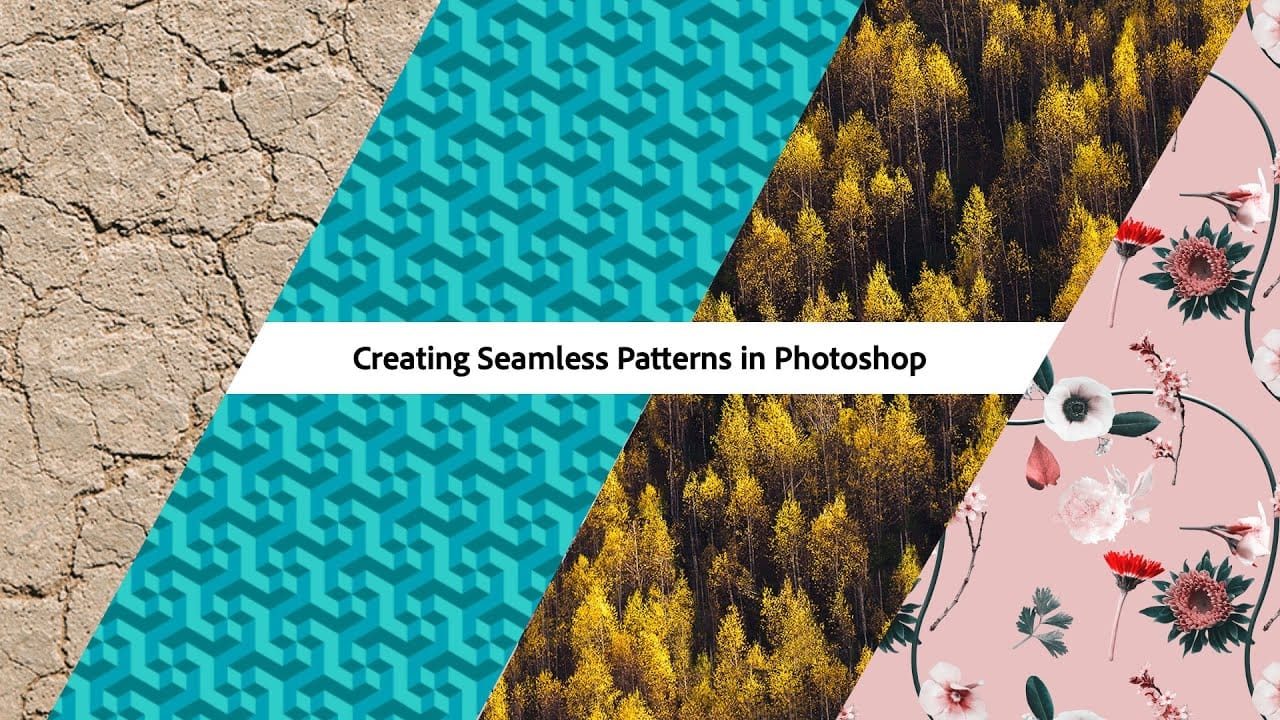
Creating Seamless Patterns in Photoshop
In this tutorial, Adobe Evangelist Paul Trani delves into the process of creating seamless patterns in Photoshop. Seamless patterns are essential for various design projects, from backgrounds to textiles, and mastering them can significantly enhance your design capabilities. Paul takes you through the entire process, from setting up your initial design to ensuring that the pattern tiles seamlessly across any surface. He covers essential techniques such as defining pattern edges, adjusting spaci
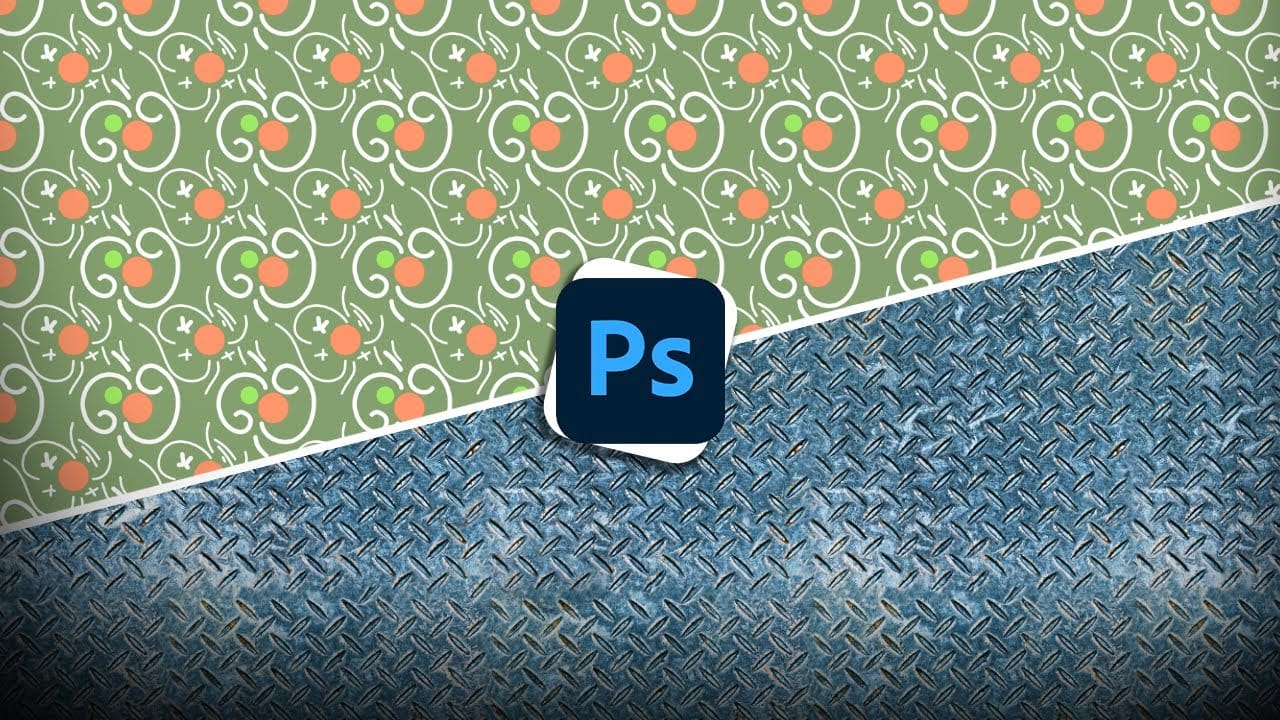
How to create seamless patterns in Photoshop with graphics or images
If you want to learn how to make a pattern in photoshop, this tutorial will share how to create a seamless repeating pattern with both graphics and an image. This way you can design a pattern for your digital art, printing, or graphic design, while also saving textured patterns from images to use in your composites and photo manipulations! With the help of the Offest filter, this entire process of making a pattern in photoshop is surprisingly simple and is an awesome way to add more creative as
3 must-try techniques to enhance colors in Photoshop
When you’re editing a photo in Photoshop, making your colors pop is likely on the top of your to-do list. There are a variety of great tools to use in Photoshop, but with these three techniques, you will be able to get more rich colors in your edits, while also having more control over how they appear. With the help of layer masks, blend if, and camera raw, you’ll be surprised by how these lesser-known Photoshop tricks can improve the look of your edits. Watch tutorial
Using AI to Create Seamless Patterns For Photoshop
This Photoshop tutorial guides you through creating a seamless pattern using AI technology. By combining Adobe Firefly with Photoshop, you can generate unique pattern designs that can be easily transformed into usable patterns for your projects. This technique is especially useful for crafting new image backgrounds or enhancing your texture library with overlays. The process begins with crafting the right prompt, so it’s important to experiment with various inputs to achieve the desired results

Get tutorials & freebies delivered to you.

Subscribe to the Photoshop Roadmap newsletter, a weekly roundup of new tutorials, insights and quality downloads, trusted by 6500+ readers.

You might also like

Basic Photoshop techniques you really need to learn

Photoshop hasn’t changed as much as it looks. New features come and go, but the same core techniques keep showing up in real work. If you skip them, everything feels harder than it should. This post focuses on those basics, not as isolated tricks, but as skills you’ll...

How to Use Select Subject for Background Removal and Edge Refinement

Background removal becomes effortless when you know how to use the right tools. AI-powered selection can instantly isolate subjects from their backgrounds, but the real skill lies in refining those selections to create professional results. This guide covers the complete workflow from initial selection to edge refinement, plus creative techniques...

How to Wrap Text Around Any Shape in Photoshop

Creating text that flows naturally around irregular shapes transforms static layouts into dynamic, professional designs. This technique works particularly well for posters, magazine layouts, and editorial designs where text needs to integrate seamlessly with complex subjects rather than simply sitting in rigid rectangular boxes. The process combines selection tools, path...

How to Edit Text in Images Using Generative Fill

Changing text within existing images has traditionally required complex masking and reconstruction techniques. Modern AI-powered tools now make it possible to seamlessly replace words and phrases in photographs while maintaining realistic typography, lighting, and perspective that matches the original scene. This technique works particularly well for signs, storefronts, billboards, and...

How to Remove Dust and Sensor Spots Using Photoshop Tools

Dust spots and sensor particles are inevitable challenges in digital photography, appearing as dark specks that distract from otherwise clean images. Camera sensors collect dust over time, creating consistent spots that show up across multiple photos, particularly in bright sky areas or uniform backgrounds. Both Lightroom and Photoshop offer specialized...

Photoshop vs Affinity Photo: Feature Comparison and Professional Analysis

When choosing professional photo editing software, the decision often comes down to comparing features, performance, and value. This detailed comparison examines the core capabilities of both applications across noise reduction, smart selections, object removal, masking, and AI-powered tools. The analysis covers real-world scenarios that professionals encounter daily, from complex background...

You’ve successfully subscribed to Photoshop Roadmap
Welcome back! You’ve successfully signed in.
Great! You’ve successfully signed up.
Success! Your email is updated.
Your link has expired
Success! Check your email for magic link to sign-in.